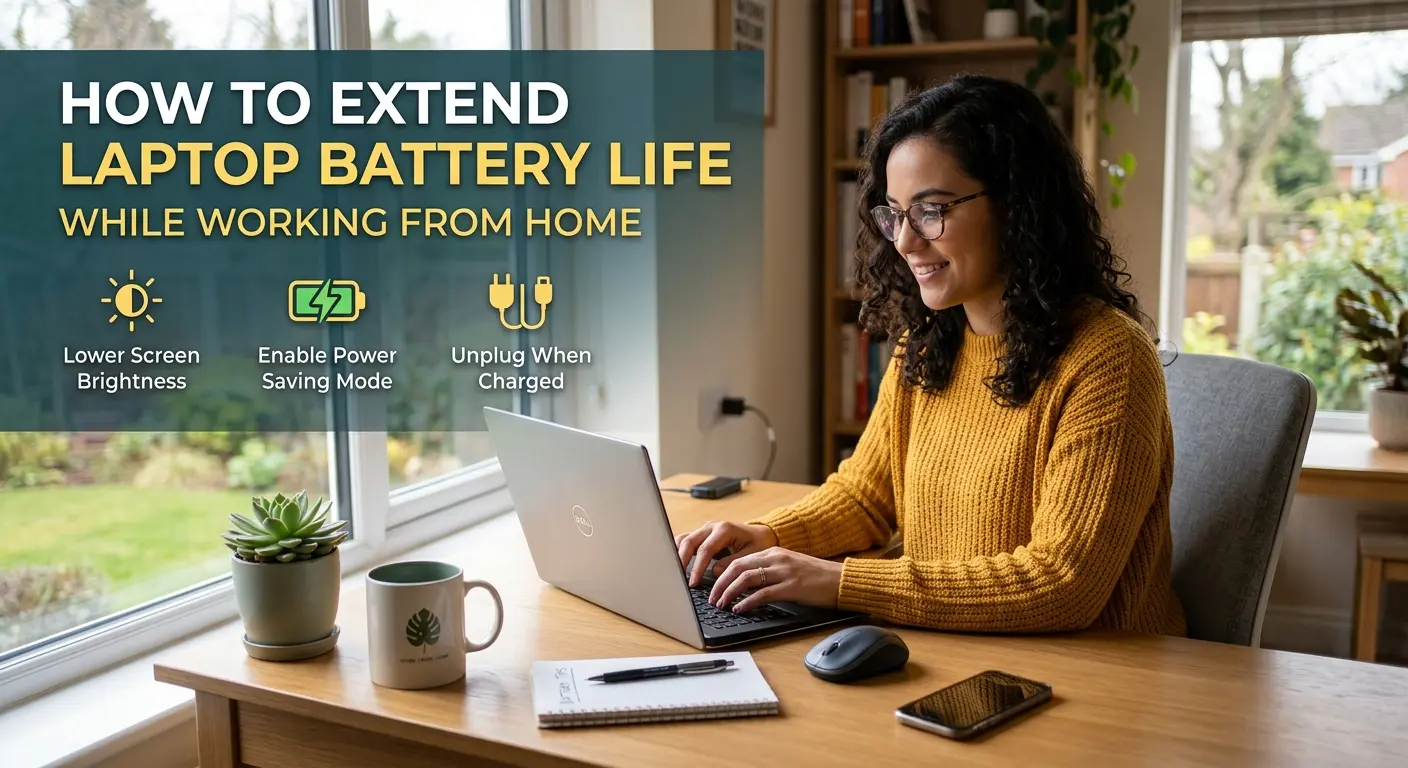
Working from home gives you the freedom to work from almost anywhere, but frequent charging can become frustrating. If your laptop battery runs out quickly during meetings, research, writing, or other daily tasks, a few simple changes can make a noticeable difference.
Knowing how to extend laptop battery life while working from home can help you work longer between charges and may also reduce unnecessary battery wear over time.
The good news is that you do not need expensive software or special equipment. Simple changes to your screen brightness, power settings, browser usage, and work habits can help improve laptop battery life.
1. Lower Your Laptop Screen Brightness
Your laptop display is one of the biggest power consumers, especially when you work for several hours.
If your screen brightness is set very high, try lowering it to a comfortable level. You do not need a very bright screen when working indoors.
A slightly lower brightness can help you:
- Save laptop battery power
- Reduce eye strain in some environments
- Make your battery last longer during work sessions
Try adjusting the brightness until the screen is clear and comfortable without being unnecessarily bright.
2. Use Battery Saver Mode
Most modern laptops include a built-in battery-saving feature. Windows laptops may have options such as Battery Saver or Energy Saver, while MacBooks include settings designed to reduce energy consumption.
These modes can reduce background activity and limit certain power-hungry processes.
If you are working away from a power outlet, enable battery saver mode when your battery starts getting low.
This is one of the easiest ways to improve laptop battery life without changing your normal workflow too much.
3. Close Unnecessary Apps and Browser Tabs
It is easy to leave dozens of browser tabs and applications open while working from home.
You might have:
- Google Docs
- YouTube
- Slack
- Zoom
- Multiple research tabs
- Music apps
- Cloud storage software
Running many applications at the same time can increase CPU and memory usage, which may consume more battery.
Close programs and browser tabs that you are not currently using. If you need them later, you can always reopen them.
This simple habit can help save laptop battery while working.
4. Reduce Background Applications
Some applications continue running even when you are not actively using them.
Cloud synchronization tools, messaging applications, automatic updates, and other background services can consume system resources.
Check which applications are running in the background and disable unnecessary ones.
However, avoid turning off important security software or system services unless you know exactly what they do.
5. Use Wi-Fi Instead of Unnecessary Connections
Your laptop constantly uses power when maintaining wireless connections.
If you are not using Bluetooth devices, consider turning Bluetooth off. Similarly, disconnect from networks or accessories that you do not need.
For most people, Wi-Fi is essential for working from home, so there is no need to disable it. Instead, focus on removing unnecessary wireless connections.
6. Keep Your Laptop Cool
Heat can negatively affect battery performance and overall laptop health.
Avoid using your laptop on soft surfaces such as:
- Beds
- Blankets
- Sofas
- Pillows
These surfaces can block ventilation and cause the laptop to become hotter.
Place your laptop on a hard, flat surface such as a desk or table. Make sure the air vents are not covered.
Keeping your laptop cool is an important part of maintaining laptop battery health.
7. Reduce Video and Graphics-Heavy Activities
Streaming high-resolution videos, playing games, editing videos, and using graphics-intensive applications can drain your battery quickly.
If your main goal is getting work done, avoid unnecessary high-power activities when you are running on battery.
For example, instead of playing a high-resolution video in the background while writing, consider listening to audio or turning the video off completely.
Small changes like this can make your laptop battery last longer.
8. Choose a More Efficient Browser
Your web browser can have a noticeable effect on battery usage, especially if you keep many tabs open.
Modern browsers include features designed to reduce memory and energy usage. Enable options such as sleeping or inactive tabs when available.
Also, close tabs that you no longer need.
If a particular website constantly uses a lot of CPU resources, keeping it open for hours may unnecessarily drain your battery.
9. Turn Off Your Keyboard Backlight
A keyboard backlight is useful when working in a dark room, but it also uses additional power.
If you are working in a well-lit room, consider reducing the keyboard backlight brightness or turning it off completely.
It may not produce a dramatic difference by itself, but combining several small power-saving habits can extend your overall battery runtime.
10. Disconnect Unused USB Devices
USB accessories can draw power from your laptop.
External hard drives, USB lights, phone chargers, wireless receivers, and other accessories may consume battery even when you are not actively using them.
When working on battery power, disconnect anything you do not need.
This is especially useful when your laptop battery is already low.
11. Keep Your Laptop Software Updated
Keeping your operating system and important drivers updated can sometimes improve performance and power efficiency.
Manufacturers regularly release updates that fix bugs and improve system stability.
However, it is better to install updates at a convenient time rather than starting a large update right before an important online meeting.
Regular maintenance can contribute to better overall laptop performance and longer battery life.
12. Use Sleep Mode During Short Breaks
If you are stepping away from your laptop for a short period, put it into sleep mode instead of leaving the screen active.
For example, if you are taking a 15-minute break, there is little reason to keep a bright display running the entire time.
For longer breaks, shutting down the laptop can make more sense.
Adjusting your sleep settings can help reduce laptop battery drain during periods when you are not actively working.
13. Avoid Keeping Too Many Startup Programs
Some applications automatically launch when you start your laptop.
These programs may continue running in the background throughout the day.
Review your startup applications and disable programs that you do not need immediately after turning on your computer.
This can help your laptop start faster and may reduce unnecessary background activity.
14. Use Dark Mode When It Makes Sense
Dark mode can reduce power consumption on some laptops, particularly those with OLED displays.
It may not make a major difference on every laptop because LCD screens work differently.
Still, if you prefer dark mode, using it can be a comfortable option for long work sessions, especially in low-light environments.
15. Manage Video Calls Carefully
Video meetings are common when working from home, but applications such as Zoom, Microsoft Teams, and Google Meet can use significant processing power.
When video is not necessary, turning off your camera can reduce system workload.
You can also close unnecessary applications before joining an important meeting.
If you have a long meeting and your battery is already low, connecting the charger beforehand is usually the safest option.
16. Reduce Unnecessary Notifications
Constant notifications can wake applications and encourage you to interact with your laptop more frequently.
Turn off notifications that are not important for your work.
Keep essential notifications, such as work messages and calendar reminders, while limiting unnecessary alerts.
This can create a cleaner workspace and may also reduce some background activity.
17. Check Which Apps Are Draining Your Battery
Most modern operating systems provide battery usage information.
Use your laptop’s battery settings to see which applications are consuming the most energy.
If you notice that one application consistently uses a large amount of battery, ask yourself whether you really need it running all day.
Identifying the biggest battery drain is often more useful than making random changes.
18. Do Not Let Your Laptop Overheat While Charging
Charging generates heat, and heavy workloads can generate additional heat.
If you are charging your laptop while performing demanding tasks, make sure it has adequate airflow.
Avoid covering the laptop with clothing, blankets, or other materials.
Good airflow helps maintain a comfortable operating temperature and supports better long-term laptop care.
19. Use the Correct Charger
Always use the charger recommended by your laptop manufacturer or a compatible charger that meets the required specifications.
A poor-quality or incompatible charger can create charging and performance problems.
If your original charger is damaged, choose a reliable replacement rather than buying the cheapest option available.
20. Consider Replacing an Old Battery
Sometimes the problem is not your settings or work habits. Laptop batteries naturally lose capacity as they age.
If your laptop used to last six or seven hours but now lasts only one or two hours under similar conditions, the battery may have degraded significantly.
Check your laptop’s battery health information. If the battery has reached the end of its useful life, replacing it may provide a much bigger improvement than changing settings.
Best Battery-Saving Settings for Working From Home
If you want a simple setup for everyday remote work, start with these settings:
- Keep screen brightness at a comfortable medium level.
- Enable battery saver when working away from a charger.
- Use sleep mode for short breaks.
- Close unused applications.
- Keep browser tabs under control.
- Turn off Bluetooth when you do not need it.
- Disconnect unused USB devices.
- Reduce keyboard backlight brightness.
- Keep your laptop on a hard surface.
- Monitor applications that consume excessive battery.
You do not need to use every tip at once. Start with the changes that are easiest for your daily routine.
How Long Should a Laptop Battery Last While Working From Home?
Battery life depends on the laptop model, battery capacity, screen brightness, processor, applications, and type of work.
Simple tasks such as writing documents, checking email, and browsing lightweight websites generally require less power than video editing, gaming, or long video calls.
If your laptop battery suddenly starts lasting much less than it used to, check the battery health and identify which applications are consuming the most power.
Can Charging Your Laptop All Day Damage the Battery?
Modern laptops are designed to manage charging automatically, so leaving a laptop connected to power is not automatically harmful.
However, heat and constantly keeping a battery at a very high charge level can contribute to battery aging over the long term.
If your laptop manufacturer provides a battery protection or charging limit feature, consider using it. Some laptops allow users to limit charging to a lower percentage when the computer is frequently plugged in.
Final Thoughts
Learning how to extend laptop battery life while working from home does not require complicated techniques.
Start with the basics: lower your screen brightness, close unused applications, use battery saver mode, keep your laptop cool, disconnect unnecessary accessories, and monitor battery-heavy applications.
If your battery is several years old and still drains quickly after making these changes, the battery itself may be the problem.
A combination of good settings and better daily habits can help you get more productive hours from your laptop and reduce unnecessary charging throughout the workday.
Frequently Asked Questions
How can I make my laptop battery last longer while working from home?
Lower screen brightness, enable battery saver mode, close unused apps, reduce browser tabs, disconnect unnecessary USB devices, and keep your laptop cool.
Does lowering screen brightness save laptop battery?
Yes. A lower screen brightness generally requires less power, especially when you work for several hours.
Should I use battery saver mode while working?
Yes. Battery saver mode can reduce background activity and limit certain power-consuming processes, making it useful when you are working without a charger.
Does Wi-Fi drain laptop battery?
Wi-Fi requires power, but it is normally necessary for remote work. Instead of turning off Wi-Fi, focus on closing unnecessary applications and disconnecting unused wireless devices.
Why does my laptop battery drain so quickly?
Heavy applications, high screen brightness, video calls, background programs, an aging battery, and excessive heat can all contribute to faster battery drain.
Does dark mode save battery on a laptop?
It can save some power on laptops with OLED displays. The difference may be much smaller on laptops with traditional LCD screens.
Is it bad to use a laptop while charging?
Using a laptop while charging is generally normal. However, demanding tasks can increase heat, so make sure the laptop has good airflow.
How do I check what is draining my laptop battery?
Windows and macOS provide battery or energy usage information that can help you identify applications using significant amounts of power.
How often should I replace my laptop battery?
There is no single replacement schedule. Battery lifespan depends on usage and charging habits. If the battery capacity has significantly decreased or the laptop shuts down unexpectedly, it may be time to consider replacement.