
How to Clear Chrome Cache Without Deleting Saved Passwords
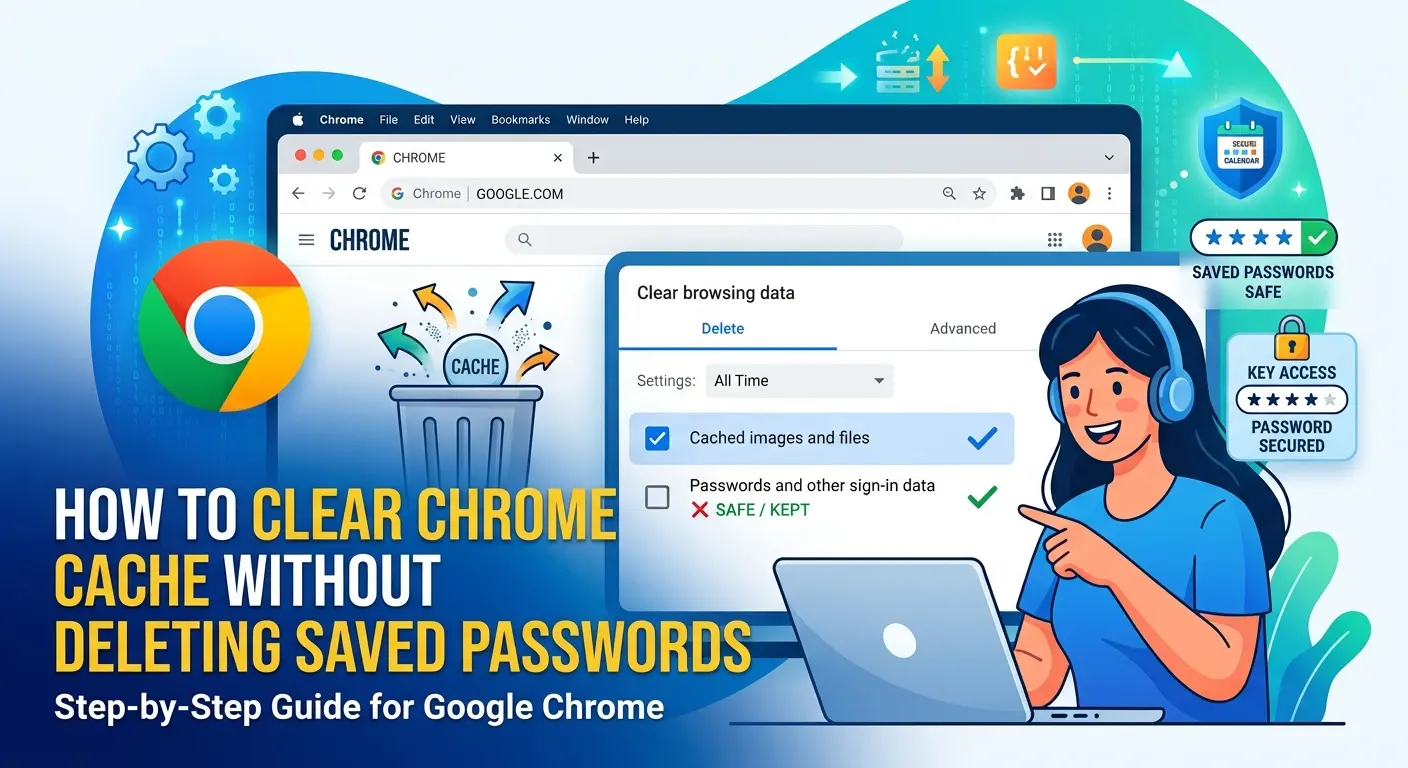
Google Chrome stores temporary files, images, scripts, and other website data in its cache to help pages load faster. Over time, however, this cached data can become outdated or take up unnecessary storage space. It can also cause problems such as websites not loading correctly, outdated page designs, or browser performance issues.
The good news is that you can clear Chrome cache without deleting saved passwords. Your passwords, bookmarks, browsing history, and other important Chrome data can remain untouched if you select the correct options.
In this guide, you will learn exactly how to clear Chrome cache without deleting saved passwords on your computer, along with what happens when you clear the cache and which Chrome settings you should avoid changing.
What Is Chrome Cache?
Chrome cache is a collection of temporary files that Google Chrome saves on your device when you visit websites.
These files can include:
- Website images
- CSS files
- JavaScript files
- Website logos
- Fonts
- Other temporary website resources
Chrome stores these files so that it does not have to download everything again whenever you visit the same website.
Caching can make websites load faster, but old or corrupted cache files can sometimes create problems. Clearing the cache gives Chrome a fresh copy of website files.
Can You Clear Chrome Cache Without Deleting Passwords?
Yes. You can safely clear Chrome cache without deleting saved passwords.
Chrome gives you control over which types of browsing data you want to remove. When you open the Clear browsing data window, you only need to select Cached images and files.
Make sure you do not select options such as saved passwords or autofill information if you want to keep them.
Your saved passwords are stored separately from cached website files, so clearing the cache does not normally remove them.
How to Clear Chrome Cache Without Deleting Saved Passwords
The easiest way to clear the Chrome cache is through Chrome’s Clear browsing data settings.
Step 1: Open Google Chrome
Launch Google Chrome on your Windows, Mac, or Chromebook computer.
You do not need to close your open tabs before clearing the cache.
Step 2: Open Clear Browsing Data
Click the three-dot menu in the top-right corner of Chrome.
Then select:
Delete browsing data
You can also open this page quickly with the keyboard shortcut:
Ctrl + Shift + Delete on Windows and ChromeOS.
On Mac, use:
Command + Shift + Delete
Step 3: Choose a Time Range
You will see a Time range option.
Chrome provides several choices, such as:
- Last hour
- Last 24 hours
- Last 7 days
- Last 4 weeks
- All time
If you want to completely remove old cached files, select All time.
If you only want to remove recently stored cache files, choose a shorter period.
Step 4: Select Only Cached Images and Files
This is the most important step.
Under the basic clearing options, select:
Cached images and files
If you want to keep your saved passwords, make sure Passwords and other sign-in data is not selected.
You can also leave browsing history and cookies unchecked if you do not want to remove them.
Step 5: Clear the Cache
After checking your selections, click:
Delete data
Chrome will remove the cached files for the selected time period.
Your saved passwords should remain available because you did not select the password option.
What Should You Not Select?
If your main goal is to clear Chrome cache without deleting passwords, be careful when selecting the data you want to remove.
The most important option to avoid is:
Passwords and other sign-in data
Do not select it unless you actually want to remove your saved passwords from Chrome.
You may also want to leave these options unchecked:
- Autofill form data
- Cookies and other site data
- Browsing history
These options remove different types of browser information and are not necessary when you only want to clear the cache.
Does Clearing Chrome Cache Delete Saved Passwords?
No, clearing only cached images and files does not delete your saved passwords.
Chrome treats cached files and saved passwords as different types of browser data.
For example, if you have saved a password for an online account in Chrome, clearing only the cache should not remove that saved password.
However, always check the selected options before clicking Delete data, especially if you are using Chrome’s advanced clearing settings.
Does Clearing Chrome Cache Log You Out?
Clearing the cache alone normally does not log you out of websites.
However, this can be different if you also delete cookies and other site data.
Cookies can store login sessions and other website preferences. If you remove cookies, some websites may ask you to sign in again.
So, if you want to clear Chrome cache while staying signed in to your websites, select only:
Cached images and files
What Happens After Clearing Chrome Cache?
After you clear the cache, Chrome may temporarily download website files again.
You might notice that some websites load slightly slower the first time you visit them after clearing the cache.
This is normal.
Once Chrome downloads the required files again, website loading should return to normal.
Clearing the cache can also help solve several common browser problems.
For example, it may help when:
- A website displays an old version of a page
- Images are not loading correctly
- A website looks broken
- A page keeps showing outdated information
- Website styles are missing
- Chrome behaves strangely on certain websites
When Should You Clear Chrome Cache?
You do not need to clear your Chrome cache every day.
Chrome is designed to manage cached files automatically.
However, clearing the cache can be useful when you are experiencing a specific problem.
Consider clearing Chrome’s cache if:
A Website Is Not Updating
Sometimes your browser may display an older cached version of a website instead of downloading the latest files.
Clearing cached images and files can force Chrome to download fresh versions.
A Website Looks Broken
If a website suddenly loses its formatting, images, or buttons, an outdated cache may be responsible.
Clearing the cache can help Chrome load the site’s current files.
Chrome Is Using Too Much Storage
Cached files can accumulate over time.
If your device has limited storage, removing old cached files can free up some space.
A Website Is Behaving Strangely
If a website works correctly in another browser but not in Chrome, clearing the Chrome cache is one simple troubleshooting step to try.
How to Clear Chrome Cache on Windows
If you are using Chrome on a Windows PC, the process is straightforward.
Open Chrome and press:
Ctrl + Shift + Delete
Select your preferred time range.
Then select only:
Cached images and files
Make sure Passwords and other sign-in data is not selected.
Finally, click Delete data.
This is one of the fastest ways to clear Chrome cache without deleting saved passwords on Windows.
How to Clear Chrome Cache on Mac
The process is almost identical on Mac.
Open Google Chrome and press:
Command + Shift + Delete
The Clear browsing data window will appear.
Choose the time range you want, then select only:
Cached images and files
Do not select the password option.
Click Delete data to finish.
How to Clear Chrome Cache Without Clearing Cookies
If you want to keep your website login sessions and preferences, you can clear only the cache.
Open Chrome’s Clear browsing data page and select:
Cached images and files
Leave Cookies and other site data unchecked.
Then click Delete data.
This method is useful when a website is not working correctly but you do not want to be signed out of your accounts.
Does Clearing Cache Remove Bookmarks?
No.
Clearing cached images and files does not normally remove your Chrome bookmarks.
Bookmarks are stored separately from temporary cached website files.
So you can clear the cache without worrying about losing your saved bookmarks.
Does Clearing Cache Delete Autofill Data?
Not if you only select Cached images and files.
Chrome’s autofill information is separate from cached files.
However, if you select the option for autofill form data when clearing browsing data, that information may be removed.
Therefore, check the selected options carefully before clearing browser data.
Cache vs Cookies vs Saved Passwords
It is useful to understand the difference between these types of Chrome data.
Cache
Cache contains temporary website files such as images, scripts, and stylesheets.
Clearing it can help fix website display and loading problems.
Cookies
Cookies store information related to websites, including preferences and login sessions.
Deleting cookies can sign you out of websites.
Saved Passwords
Saved passwords are login credentials that Chrome stores for websites.
They are separate from cached files.
If you want to keep your passwords, do not select Passwords and other sign-in data when clearing browsing data.
Can You Clear Cache Without Losing Everything in Chrome?
Yes.
Chrome lets you choose exactly what type of browsing data you want to remove.
If you only need to refresh website files, clearing Cached images and files is usually enough.
You do not need to delete your browsing history, cookies, bookmarks, or saved passwords just to clear the cache.
What If Chrome Still Has a Problem After Clearing the Cache?
If clearing the cache does not solve the problem, the issue may be caused by something else.
You can try these additional troubleshooting steps:
- Restart Chrome.
- Restart your computer.
- Check whether Chrome is updated.
- Try the website in Incognito mode.
- Temporarily disable browser extensions.
- Check whether the website works in another browser.
- Clear cookies for the specific website if necessary.
If the problem only happens on one website, the website itself may also be experiencing an issue.
A Safer Way to Clear Chrome Cache
If you are concerned about losing important information, always review the options before deleting browsing data.
For a basic cache cleanup, your safest selection is:
Cached images and files
Leave passwords, cookies, autofill data, and other information unchecked unless you specifically want to remove them.
This gives you a simple way to troubleshoot Chrome without unnecessarily deleting important browser information.
Final Thoughts
Knowing how to clear Chrome cache without deleting saved passwords can save you from accidentally losing important login information.
The process is simple: open Chrome’s Clear browsing data settings, choose the appropriate time range, select only Cached images and files, and make sure the password option is not selected.
You can also leave cookies and other browsing information untouched if your goal is simply to refresh cached website files.
Clearing the cache is a useful troubleshooting step when websites are displaying outdated content, loading incorrectly, or behaving unexpectedly. Just remember to review your selections before clicking Delete data.
Frequently Asked Questions
1. How do I clear Chrome cache without deleting saved passwords?
Open Chrome, press Ctrl + Shift + Delete on Windows or Command + Shift + Delete on Mac. Select Cached images and files, make sure Passwords and other sign-in data is unchecked, and click Delete data.
2. Will clearing Chrome cache delete my saved passwords?
No. Clearing only cached images and files does not delete your saved Chrome passwords.
3. How do I clear Chrome cache but stay logged in?
Select only Cached images and files when clearing browsing data. Do not select Cookies and other site data, because cookies can contain login session information.
4. Does clearing Chrome cache delete bookmarks?
No. Clearing cached files does not delete your Chrome bookmarks.
5. Does clearing Chrome cache delete autofill information?
No, not when you select only Cached images and files. Autofill data is stored separately.
6. How often should I clear my Chrome cache?
There is no need to clear it regularly. You should consider clearing the cache when websites are not loading correctly, displaying outdated content, or when you need to troubleshoot a browser problem.
7. What is the shortcut to clear Chrome cache?
On Windows and ChromeOS, press Ctrl + Shift + Delete. On Mac, press Command + Shift + Delete.
8. Does clearing cache make Chrome faster?
It can help resolve certain browser or website problems, but clearing the cache does not automatically make Chrome faster in every situation. Chrome normally manages cached files on its own.
9. Can I clear cache for just one website?
Yes. Chrome provides options for managing data associated with individual websites. This can be useful when one particular website is having problems while everything else works normally.
10. What is the difference between Chrome cache and cookies?
Cache stores temporary website files such as images and scripts, while cookies store website-related information such as preferences and login sessions. Clearing cookies can sign you out of websites, while clearing only the cache generally does not.