Start Streaming Games Tonight — No Capture Card Needed
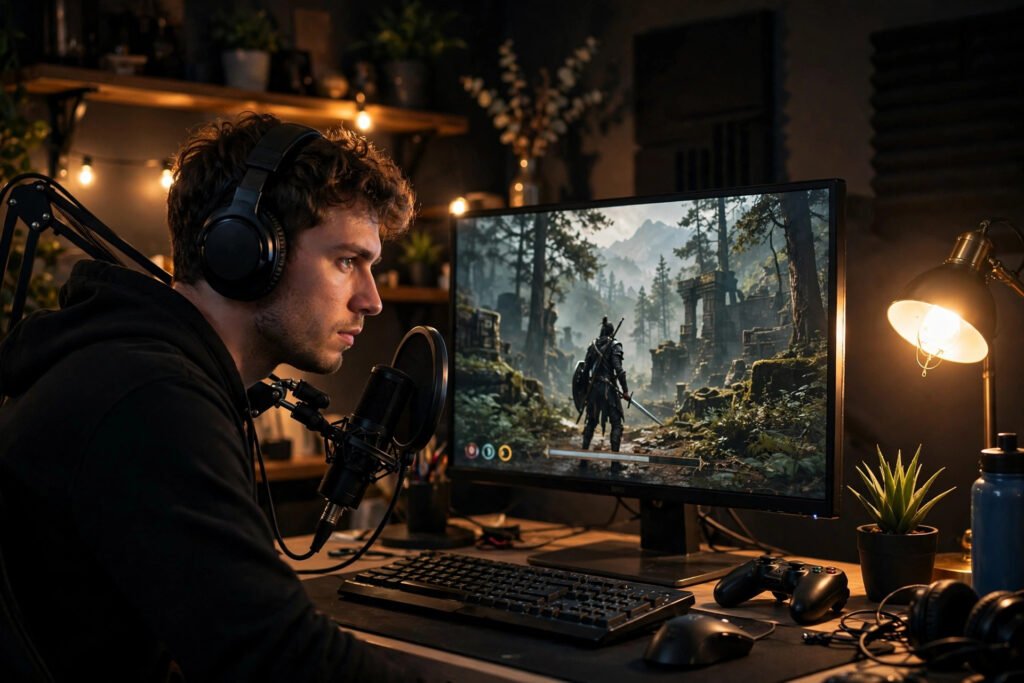
Game streaming looks like it requires a studio: capture cards, dual PCs, audio mixers, a wall of RGB. The capture card alone — $150–$200 for an Elgato HD60 — stops many would-be streamers before they start. Here’s the liberating truth: in 2026, most streamers don’t need a capture card at all. If you’re streaming PC games, or console games via remote play, free software handles everything the card does. Capture cards solve one specific problem — capturing an external HDMI source — and most beginners don’t have that problem. Here’s how to start streaming tonight with zero new hardware.
When You Don’t Need a Capture Card (Most Beginners)
Streaming PC games: OBS Studio (free, open-source) captures your game directly from your GPU — game capture, window capture, or display capture, no intermediary hardware involved. Your PC is already rendering the game; OBS just encodes that output for Twitch or YouTube. A capture card adds literally nothing here — it’s designed for external sources, and your PC’s games aren’t external.
Streaming console games without a card: both PlayStation and Xbox offer built-in streaming to Twitch/YouTube directly from the console — no PC required at all. Quality and overlay options are basic, but it works in minutes. For the full OBS experience without a capture card, use remote play: PS Remote Play or Xbox Remote Play streams your console to your PC over your home network, and OBS captures that window. There’s slight added latency and quality loss versus a capture card, but for starting out it’s completely viable — many successful streamers began exactly this way.
The one case you need a capture card: capturing a second PC’s or console’s direct HDMI output at maximum quality with minimum latency — the classic dual-PC streaming setup. That’s an optimization for established streamers, not a starting requirement. Start without one; buy one later if your channel outgrows the software methods.
Setting Up OBS Studio (Free, 30 Minutes)
Download OBS Studio (obsproject.com — free, no watermark, no catch). The auto-configuration wizard analyzes your hardware and sets sensible encoding defaults — accept its recommendations initially. Then build your first scene: add a Game Capture source (select your game), add a Video Capture Device for your webcam if you have one, add an Audio Input Capture for your mic. Arrange the layout by dragging — game fullscreen, webcam in a corner is the classic starting layout.
Key settings that matter: output resolution 1080p (or 720p if your upload speed is under 8 Mbps — smooth 720p beats stuttering 1080p every time), 60fps if your hardware handles it, and encoder NVENC (NVIDIA) or AMF (AMD) to offload encoding to your GPU rather than your CPU. Connect your Twitch or YouTube account in Settings → Stream, and you’re technically live-ready. Test with a private/unlisted stream first — watch the VOD yourself and fix audio levels before your first real broadcast. Bad audio kills channels faster than bad video; even a $30 USB mic properly positioned beats a $200 mic badly configured.
Going Live on Each Platform
Twitch: the default for live gaming. In OBS, select Twitch as the service, connect your account, set your stream title/category, and hit Start Streaming. Twitch’s requirements are minimal — affiliate status (needed for monetization) requires 50 followers plus modest viewership averages, achievable for consistent beginners within months.
YouTube: better discoverability (videos live on as searchable VODs) but a tougher live culture. YouTube requires channel verification for live streaming (a 24-hour wait for first-timers). Stream key setup mirrors Twitch. Many beginners dual-stream or start on Twitch for community and repurpose highlights to YouTube/TikTok for growth — the clips ecosystem is where small streamers actually get discovered in 2026.
Console direct streaming: on PlayStation, hit Create → Broadcast; on Xbox, the Twitch app streams directly. You’ll sacrifice overlays, alerts, and multi-source scenes, but you’ll be live in five minutes with zero setup. It’s the perfect way to test whether you enjoy streaming before investing any effort in OBS. Twitch’s official console-streaming guides and YouTube’s live-streaming help center both walk through platform-specific setup step by step.
Growing Without Gear: What Actually Builds a Channel
Here’s what new streamers get wrong: obsessing over hardware while neglecting the things that actually grow channels. The data from successful small streamers is consistent — growth comes from: consistency (a predictable schedule, even 3 days a week, beats marathon random sessions), a niche (speedrunning one game, cozy variety, educational commentary — “I play whatever” is undiscoverable), talking constantly (narrate your gameplay even with zero viewers — VOD viewers and the algorithm reward it, and silence is unwatchable), and clipping everything (one viral 30-second clip outperforms a month of quiet streams).
Engage genuinely: learn regulars’ names, remember details, build inside jokes. Small-streamer advantage is intimacy — a 10-viewer stream where everyone knows each other beats a 1,000-viewer stream where you’re invisible. And study the business side casually: how streaming platforms make money helps you understand the ecosystem you’re joining, from revenue splits to discoverability mechanics. For game selection, casual-friendly games with active communities often outperform oversaturated mega-titles for new streamers — it’s easier to be discovered in a 500-viewer category than a 500,000-viewer one.
When to Upgrade (The Sensible Path)
Upgrade in this order, only when the current step limits you: 1. Microphone ($50–$100 USB mic — the single biggest quality jump). 2. Lighting ($25 ring light or desk lamp — webcam quality is 70% lighting). 3. Webcam (only if yours is truly bad; lighting matters more). 4. Second monitor (chat monitoring without alt-tabbing — huge quality-of-life). 5. Capture card (only when you’re regularly streaming console at quality levels remote play can’t deliver). Notice what’s last: the thing everyone thinks they need first is actually the final upgrade. Total sensible starter investment: under $100, mostly the mic.
Conclusion
Streaming games without a capture card isn’t a compromise — for PC streaming it’s literally the standard method, and for console it’s a free software bridge away. Download OBS Studio, configure it in 30 minutes, test privately, and go live tonight. The capture card, the dual PC, the mixer — those are year-two problems, if they ever become problems at all. Channels are built on consistency, personality, and niche, not hardware. Start streaming with what you have; upgrade only what holds you back.
Frequently Asked Questions
Do I need a capture card to stream on Twitch?
No, not for PC games — OBS Studio captures them directly with no extra hardware. For console games, you can stream directly from the console or use remote play into OBS. Capture cards only become relevant for dual-PC setups or maximum-quality console capture.
Can I stream with a regular laptop?
Yes, for less demanding games — modern laptops with dedicated GPUs or strong integrated graphics (Apple Silicon, recent AMD APUs) handle 720p streaming fine. Use GPU encoding (NVENC/AMF), stream at 720p60, and close background apps. Demanding AAA titles at high settings will struggle; lighter games stream great.
How fast does my internet need to be for streaming?
Upload speed is what matters: 8–10 Mbps for 1080p, 5–6 Mbps for 720p. Test at speedtest.net — and use a wired Ethernet connection, not WiFi, for stability. Dropped frames come from unstable connections more than slow ones; stability beats raw speed.
How do small streamers get viewers in 2026?
Consistency, niche selection, and short-form clips. Stream on a predictable schedule in a less-saturated category, talk constantly, and clip highlights to TikTok/YouTube Shorts — that’s where discovery happens now. Networking with similar-size streamers (raids, collaborations) compounds growth faster than any hardware upgrade.