
How to Recover Deleted Photos From Your Phone (iPhone & Android)
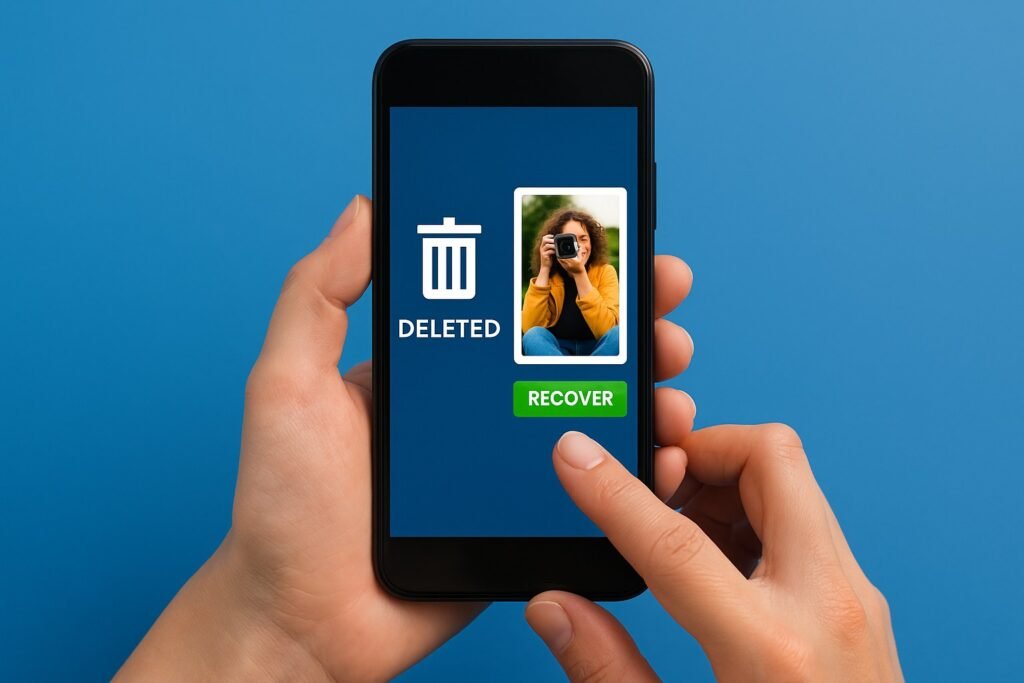
You deleted a photo — or a hundred — and now you need them back. Take a breath: if you’re wondering how to recover deleted photos from your phone, the odds are actually in your favor, because both iPhone and Android keep deleted photos in a safety net for 30 days.
Act sooner rather than later, though. Every day you wait, and every new photo you take, makes recovery harder. Here’s the order to try things in.
The short answer: check your Recently Deleted / Trash folder first — photos stay there 30 days and restore in one tap. If they’re gone from there, check iCloud Photos, Google Photos trash, or any cloud backup. After 30 days with no backup, recovery gets difficult and usually requires professional tools.
Method 1: The Recently Deleted Folder (Works Within 30 Days)
On iPhone: open Photos, scroll to Utilities, tap Recently Deleted. You’ll see everything deleted in the last 30 days with a countdown on each. Tap Select, choose what you want, and hit Recover — they’re back in your library instantly. Note: on newer iOS versions, this folder requires Face ID to open, which is a nice privacy touch.
On Android (Google Photos): open the Google Photos app, tap Library > Trash. Same deal — 30 days, one-tap restore. Samsung’s Gallery app has its own Recycle Bin under Settings. This catches the vast majority of accidental deletions, which is why it’s always step one. If the photos aren’t there, they were either deleted more than 30 days ago or removed from the trash manually — move to method two.
Method 2: Check Your Cloud Backups
This is where most ‘lost’ photos are actually hiding. iCloud Photos, Google Photos, OneDrive, Dropbox, Amazon Photos — log into each from a computer and search. Photos you thought were phone-only may have synced before deletion. Google Photos even has its own separate Trash with a 60-day window, longer than the phone’s.
Also check shared albums and family sharing — someone else may have saved copies. And don’t forget messaging apps: photos you sent via iMessage, WhatsApp, or email still exist in those conversations even after you delete them from your camera roll. I’ve recovered ‘lost’ vacation photos from a group chat more than once.
- iCloud Photos and Google Photos trash (60 days)
- OneDrive, Dropbox, Amazon Photos if you use them
- Shared albums and family libraries
- Message threads — sent photos survive camera-roll deletion
- Old device backups (computer backups or Google One)
Method 3: Restore From a Backup
If you back up your phone regularly, the photos may live in an older backup. iPhone users: connect to a computer and check backup dates in Finder or iTunes — restoring an old backup brings back everything as of that date, but wipes anything newer, so back up your current state first. It’s a trade-off; only do this if the lost photos matter more than recent data.
Android users: check Google One backup or your manufacturer’s cloud (Samsung Cloud). The same trade-off applies. This method is clumsy but effective for truly important photos — wedding shots, baby pictures, that kind of thing. It’s also a strong argument for backing up your entire phone before anything goes wrong, not after.
When Photos Are Truly Gone (and Scam Software to Avoid)
If it’s been over 30 days with no backup anywhere, be realistic: consumer recovery is unlikely. The storage space has probably been overwritten. Professional data recovery services exist ($300–$1,000+) and occasionally succeed, but only for extremely valuable photos — and only if you stop using the phone immediately to prevent overwriting.
A warning: the internet is full of ‘photo recovery software’ that promises miracles for $40–$70. Most are useless on modern phones (encryption blocks the access they need), and some are outright malware. Save your money — and set up automatic cloud backup tonight so this never happens again.
How Can I Recover Deleted Photos From My Phone When There’s No Backup?
Let’s talk honestly about the worst case: no backup, past 30 days, photos gone from Recently Deleted. First, stop using the phone as much as possible — every new photo, app update, or download risks overwriting the old data’s storage blocks. Put it in airplane mode and leave it alone while you assess options.
Second, check the long shots systematically: old phones in drawers (photos may still be on them), computers you once synced with, email attachments you sent, social media uploads (even drafts), shared family albums, and cloud services you forgot you enabled (Amazon Photos backs up automatically for Prime members — many people don’t realize it’s on). I’ve seen ‘lost forever’ photos turn up in a forgotten Dropbox folder more than once.
Third, if the photos are truly irreplaceable — a deceased relative’s pictures, wedding photos with no other copies — a professional data recovery lab is the last resort. Expect $300–$1,000+, no guarantees, and a turnaround of weeks. It’s expensive, but for some memories it’s worth asking. Just go in with realistic expectations: modern phone encryption makes recovery genuinely difficult, and anyone promising certainty is selling something.
Prevention deserves one more emphasis because it’s so much cheaper than recovery: turn on iCloud Photos or Google Photos backup tonight — not tomorrow — and verify it completes. Then add a second layer: an annual export of your full photo library to a computer or external drive, done every New Year’s Day like clockwork. Two independent backups mean a deleted photo is a 30-second restore, not a crisis. The people who never lose photos aren’t luckier; they’re just backed up twice.
Related reading: how to back up your entire phone before getting a new one · how to transfer photos from an iPhone to a Windows laptop
The Bottom Line
Check Recently Deleted first (30-day window, one-tap restore), then every cloud service you use, then old backups. Act fast and stop taking new photos to avoid overwriting. If nothing turns up, skip the miracle recovery software — and turn on automatic cloud photo backup so next time is a non-event.
Sources: Apple Photos support · Google Photos help center