Why Your Laptop Gets So Hot (and How to Cool It Down)
A laptop that’s warm under load is normal. A laptop that’s too hot to keep on your lap, with fans screaming like a jet engine, is not. If you’re wondering why your laptop gets so hot and how to fix it, the answer is usually dust, blocked vents, or software working harder than it should.
Sustained heat isn’t just uncomfortable — it throttles performance and shortens your machine’s life. Here’s how to cool things down, from free fixes to the $30 solution that actually works.
The short answer: laptops overheat because of dust-clogged vents and fans, blocked airflow (using it on beds/couches), dried-out thermal paste on older machines, or runaway background processes. Clean the vents, use it on hard surfaces, check Task Manager for CPU hogs, and consider a cooling pad.
Why Does My Laptop Get So Hot? The Main Causes
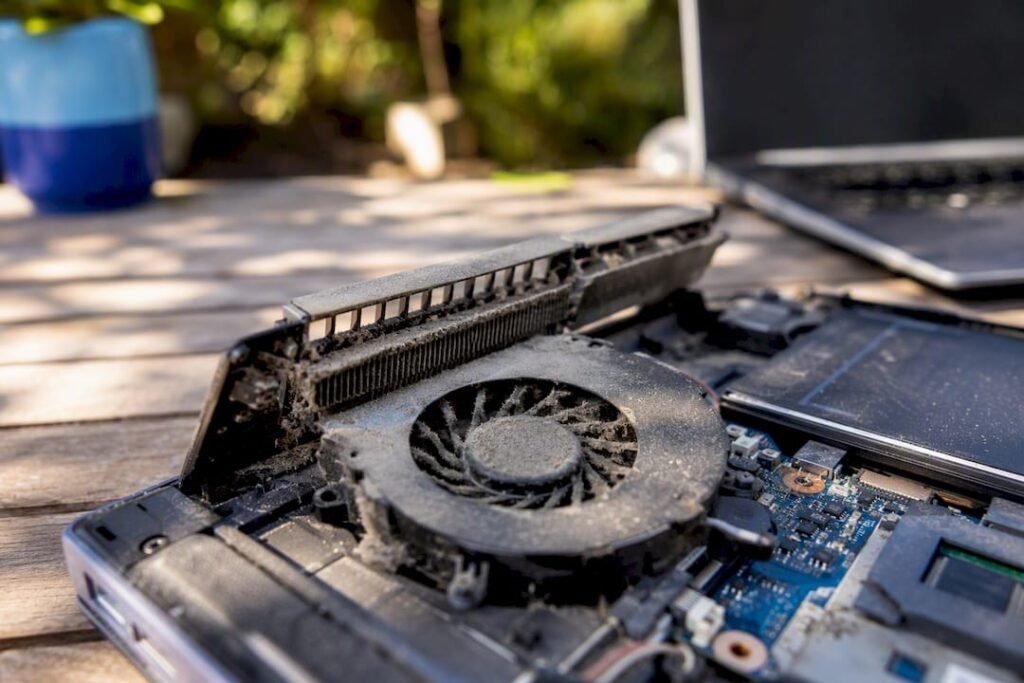
Dust is the number one cause. Over months and years, dust cakes onto the fans and heat sinks inside your laptop, choking the airflow the cooling system was designed around. The fans spin faster to compensate (that’s the jet-engine noise), temperatures climb anyway, and the processor slows itself down to avoid damage — which is why an overheating laptop also feels slow.
Blocked vents are a close second. Laptop cooling depends on air flowing in the bottom/side vents and out the exhaust. Using it on a bed, couch, blanket, or your actual lap seals those vents shut. Even a desk can be a problem if the laptop sits flat — there’s no clearance underneath for air to circulate. And software matters: Chrome with 40 tabs, a stuck update, or malware mining crypto in the background can pin your CPU at 100% indefinitely.
Free Fixes: Airflow and Software
Start with the surface: always use your laptop on a hard, flat surface, or at least prop the back edge up an inch with a book to let air flow underneath. It sounds trivial; it drops temperatures several degrees. Then check what’s actually using the CPU: Task Manager (Ctrl+Shift+Esc) on Windows or Activity Monitor on Mac, sorted by CPU. Kill or update whatever’s hogging resources — a runaway browser tab or stuck updater is a common find.
Adjust your power settings too. On Windows, switching from ‘Best performance’ to ‘Balanced’ or ‘Best power efficiency’ reduces heat significantly for everyday tasks — you won’t notice the difference in Word or Chrome. On Mac, avoid Chrome if heat is an issue; Safari is dramatically more efficient on Apple silicon. And close the 40 tabs. You know the ones.
- Use on hard surfaces; prop the rear up for airflow
- Check Task Manager/Activity Monitor for CPU hogs
- Switch power mode from ‘Best performance’ to ‘Balanced’
- Close unused browser tabs and heavy background apps
- Keep the laptop out of hot cars and direct sunlight
Clean the Dust Out
For a laptop that’s never been cleaned, this is transformative. Power it off, unplug it, and blast the vents with short bursts of compressed air ($5–$8 a can) — hold the fan still with a toothpick if you can see it, since overspinning fans can damage bearings. Do this outside; you’ll be horrified by what comes out.
For a deeper clean, removing the bottom panel (usually 8–12 small screws) lets you clean the fans directly. While you’re in there on a machine that’s 3+ years old, consider replacing the thermal paste — the compound between the processor and heat sink dries out over time, and fresh paste ($8–$12) can drop temperatures 10–20°C. There are model-specific video guides for nearly every laptop; if you’re not comfortable, a shop will do a full cleaning and repaste for $50–$80.
Cooling Pads: Do They Actually Work?
Yes, with caveats. A decent cooling pad ($25–$40) with large, quiet fans typically drops temperatures 5–10°C — meaningful, though not miraculous. The elevation alone helps even with the fans off. Look for a pad sized to your laptop, with adjustable fan speed and a design that doesn’t block your particular vent layout.
What cooling pads can’t fix: dust-clogged internals, dried thermal paste, or a cooling system that’s failing. If your laptop still hits 95°C+ on a cooling pad with clean vents, the heat pipes or fans may be dying — time for a repair shop. And remember the nuclear software option: if heat appeared suddenly alongside slowness, a fresh Windows install (the same fix that helps speed up an old slow computer) eliminates any hidden software cause in one shot.
Why Does My Laptop Get So Hot and How Can I Fix It When It’s Old?
On laptops more than four or five years old, there’s a cause younger machines don’t have: dried-out thermal paste. The thermal compound between the processor and heat sink hardens over years of heat cycles, and cooling efficiency falls off a cliff — temperatures 15–25°C higher than when new, with constant fan noise and throttling. Replacing it ($8–$12 for quality paste like Arctic MX-4 or Noctua NT-H1) is the single most effective fix for an aging hot laptop.
The job involves removing the bottom panel, detaching the heat sink, cleaning off the old paste with isopropyl alcohol, applying a pea-sized drop of new paste, and reassembling. There are video guides for nearly every model, and it takes 30–60 minutes for a first-timer. If that sounds daunting, a repair shop charges $50–$80 for cleaning plus repasting — still far cheaper than a new laptop.
Also check the battery: swelling batteries press against internal components and block airflow, causing heat plus a trackpad that clicks oddly or a case that doesn’t sit flat. A swollen battery is a safety issue — stop using the laptop and get it replaced immediately. Heat plus a bulging case is the one overheating symptom you should never troubleshoot casually.
Related reading: how to speed up your old slow computer without buying a new one · what is the best cheap laptop for college students in 2026
The Bottom Line
Clean the dust from vents with compressed air, use the laptop on hard surfaces with airflow underneath, and check Task Manager for runaway processes. A $30 cooling pad helps meaningfully; fresh thermal paste on older machines helps enormously. If it still overheats after all that, get the cooling hardware checked — heat kills laptops slowly, so don’t ignore it.
Sources: Intel: tips for keeping your laptop cool · CNET laptop cooling guide