How to Speed Up an Old, Slow Computer Without Buying a New One
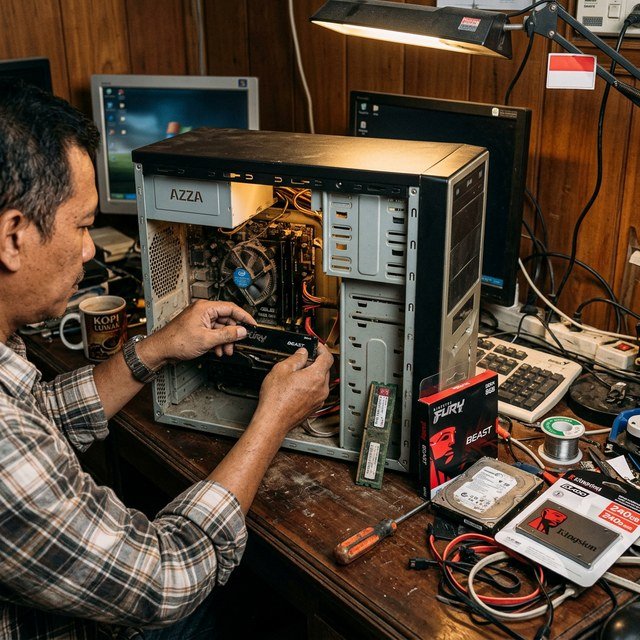
Before you spend $600 on a new computer, hear me out: most ‘slow’ computers aren’t worn out — they’re just clogged. Bloated startup programs, a dying hard drive, and years of accumulated junk make a perfectly good machine feel ancient. Learning how to speed up your old slow computer without buying a new one usually takes an afternoon and, in one case, about forty bucks.
I’ve revived machines that took five minutes to boot and made them feel nearly new. Here are the fixes in order of impact, starting with the single upgrade that beats everything else.
The short answer: the biggest speedup comes from replacing an old hard drive with an SSD ($35–$50) — it makes boot times drop from minutes to seconds. After that, disable unnecessary startup programs, uninstall bloatware, add more RAM if you have less than 8GB, and do a fresh Windows install if all else fails.
The $40 Upgrade That Changes Everything: Switch to an SSD
If your computer still has a spinning hard drive (HDD), this is your problem about 80% of the time. A 500GB SSD costs $35–$50 these days — brands like Crucial and Samsung are reliable — and swapping one in is the closest thing to buying a new computer without buying a new computer. Boot times go from 3–5 minutes to under 30 seconds. Programs open instantly. The whole machine feels five years younger.
Installation is easier than you’d think: tons of YouTube tutorials walk through it for every laptop model, and free cloning software (Macrium Reflect or the SSD maker’s own tool) copies your entire system over so you don’t reinstall anything. If you’re not comfortable opening the machine, a local shop will do the swap for $40–$60 in labor. Either way, this is the best dollars-to-speed ratio in all of computing.
Free Fixes: Kill Startup Programs and Bloatware
Press Ctrl+Shift+Esc to open Task Manager, click the Startup tab, and look at what’s launching with Windows. Adobe updaters, Spotify, Discord, printer utilities you haven’t used in years — every one of them steals boot time and RAM. Right-click and disable anything you don’t need the second your computer turns on. You can still open these programs manually; disabling startup just stops them from auto-launching.
Then go to Settings > Apps and uninstall the junk: trial antivirus software, manufacturer bloatware, games you never play, toolbars. Be a little ruthless. While you’re at it, run Disk Cleanup (search for it in the Start menu) to clear gigabytes of temp files and old Windows update leftovers. These three steps alone — startup cleanup, uninstalls, disk cleanup — can cut boot time in half on a neglected machine.
- Task Manager > Startup: disable everything non-essential
- Settings > Apps: uninstall bloatware and unused programs
- Disk Cleanup: clear temp files and old update files
- Browser: remove unused extensions, clear cache
- Desktop: move files off the desktop (each icon costs resources)
Add RAM If You’re Running on Fumes
If your computer has 4GB of RAM in 2026, it’s gasping. Windows 11 alone wants most of that, leaving nothing for Chrome and your actual work. Bumping to 8GB — or 16GB if your machine supports it — costs $20–$40 for a stick and takes ten minutes to install on most desktops and many laptops.
Check what you have first: Task Manager > Performance > Memory shows your total and how many slots are used. Then look up your model’s max supported RAM (Crucial’s website has a free compatibility checker — just enter your computer model). Fair warning: many thin ultrabooks have soldered RAM that can’t be upgraded, so check before buying. If RAM is maxed out and the machine is still slow, the SSD upgrade above matters even more.
The Nuclear Option: A Fresh Windows Install
When years of cruft have piled up beyond what cleanup can fix, a fresh install of Windows is like a factory reset for performance. Go to Settings > System > Recovery > Reset this PC. Choose ‘Remove everything’ for the full effect — but back up your files first, because this wipes the drive. (This is also exactly why knowing how much it costs to upgrade from Windows 10 to Windows 11 matters — a fresh install is the perfect time to move to a supported OS.)
After reinstalling, be deliberate about what goes back on. Install only what you actually use. Skip the ‘utility’ software that promises to speed up your PC — most of it is snake oil or outright malware. Windows’ built-in Defender and Disk Cleanup handle security and maintenance fine on their own. A clean install on an SSD feels like unboxing day, and it’ll stay fast as long as you’re disciplined about what you install afterward.
How Can I Speed Up My Old Slow Computer Without Buying a New One? Advanced Tweaks
If the basics helped but you want more, try debloating Windows. Tools like Chris Titus Tech’s Windows Utility (free, open-source) remove preinstalled junk and disable telemetry in minutes — it’s the power-washer version of manual uninstalling. Also check your storage: a drive that’s 95% full slows everything down, so move big files to an external drive and keep 15–20% free.
For machines that are truly ancient (10+ years), consider Linux Mint or Zorin OS — free operating systems that run beautifully on old hardware and handle browsing, documents, and video calls fine. It’s a bigger change, but it can give a 2014 laptop several more useful years. And don’t overlook thermals: a laptop clogged with dust overheats and throttles, so a physical cleaning (compressed air through the vents) is a performance upgrade disguised as maintenance.
Related reading: what is the best cheap laptop for college students in 2026
The Bottom Line
Start free: kill startup programs, uninstall bloatware, run Disk Cleanup. Then spend $35–$50 on an SSD — it’s the single most transformative upgrade you can make. Add RAM if you’re under 8GB, and save the fresh Windows install for when nothing else cuts it. Do all four and your ‘ancient’ computer will embarrass machines costing ten times more.
Sources: Crucial’s free RAM and SSD compatibility checker · Microsoft’s guide to resetting Windows