How to Use Your Phone as a Hotspot Without Extra Charges
Stuck with a laptop and no Wi-Fi? Your phone can share its data connection as a hotspot — and on most current plans, it won’t cost you extra. But the details vary wildly by carrier and plan, and that’s where people get burned.
Here’s how to use your phone as a hotspot without extra charges: which plans include it, how to turn it on, and the traps that trigger surprise fees.
The short answer: most current unlimited plans from Verizon, AT&T, and T-Mobile include a monthly hotspot allowance (typically 5–50GB) at no extra charge — turn it on in Settings > Personal Hotspot (iPhone) or Settings > Connections > Mobile Hotspot (Android). Check your plan’s allowance first; exceeding it causes throttling, not fees, on most plans.
Which Plans Include Hotspot for Free?
The big three all bundle hotspot data into their standard unlimited plans now. T-Mobile’s plans typically include 5–50GB of high-speed hotspot depending on tier; Verizon’s unlimited plans include 25–50GB on premium tiers; AT&T similar. Prepaid and MVNO plans (Mint Mobile, Cricket, Visible) usually include some hotspot too — Visible’s plans famously include unlimited hotspot (throttled to 5 Mbps, one device), which is a standout deal for light use.
The key word is ‘allowance’: hotspot data is usually a separate bucket from your phone data. Use 10GB of hotspot on a plan with a 15GB allowance and you’re fine; blow past it and speeds drop to 600 Kbps–3 Mbps for the rest of the cycle — usable for email, painful for video. Overage fees for hotspot are rare on modern plans (throttling replaced them), but check your plan details to be sure — older grandfathered plans sometimes still charge.
How to Turn It On
iPhone: Settings > Personal Hotspot > toggle ‘Allow Others to Join.’ Set a strong Wi-Fi password (not the default). Your hotspot name is your iPhone’s name. Android: Settings > Connections (or Network & Internet) > Mobile Hotspot and Tethering > Mobile Hotspot > toggle on, and configure the name/password. Both let you see connected devices and kick off freeloaders.
Pro tips: USB tethering (plug the phone into the laptop) is faster, more stable, and uses less phone battery than Wi-Fi hotspot — use it when you can. Bluetooth tethering exists but is slow; skip it. And on iPhone, the ‘Maximize Compatibility’ toggle helps older devices connect but slows things down — leave it off unless a device can’t see your hotspot.
- iPhone: Settings > Personal Hotspot > Allow Others to Join
- Android: Settings > Connections > Mobile Hotspot and Tethering
- Use USB tethering when possible: faster, stable, saves battery
- Set a strong password — open hotspots get hijacked fast
- Monitor data: both platforms show hotspot usage in settings
Avoiding the Traps
Trap one: laptop background data. The moment a Windows laptop connects, it may start downloading updates, syncing OneDrive, and backing up photos — burning through your hotspot allowance in an hour. Before connecting, set the connection as metered (Windows: Settings > Network > Wi-Fi > your hotspot > Metered connection ON) — this tells Windows to hold off on the heavy stuff.
Trap two: video quality. Streaming video eats 1–3GB per hour at HD. Drop to 480p when on hotspot, or download shows beforehand on Wi-Fi. Trap three: leaving the hotspot on. It drains your phone battery fast and invites anyone nearby to try the password. Turn it off when you’re done — every time. A $20–$30 power bank in your bag solves the battery anxiety.
When Hotspot Isn’t Enough
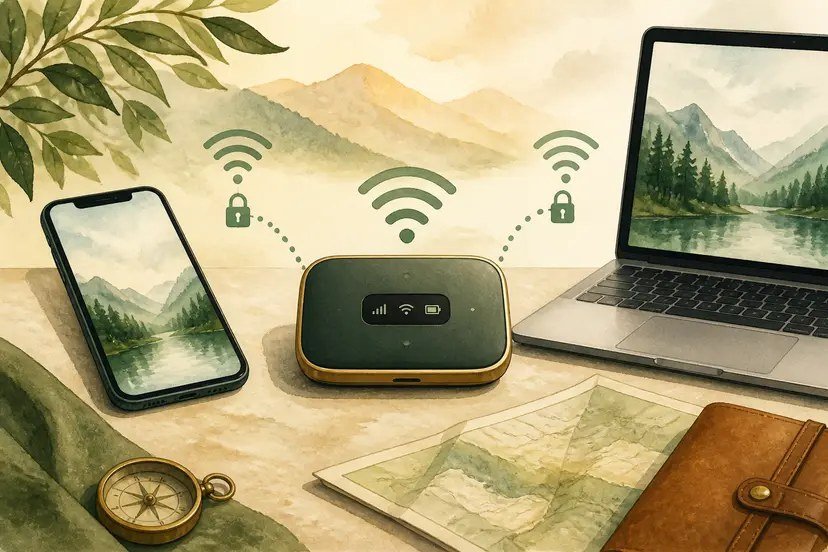
If you’re hotspotting regularly for remote work, consider a dedicated mobile hotspot device or 5G home internet instead — phone hotspots are convenient but they’re hard on your phone’s battery and often deprioritized on congested towers. T-Mobile, Verizon, and AT&T all sell hotspot-only plans ($20–$60/month) with bigger data buckets.
For travel, an eSIM data plan (Airalo, Nomad) is often cheaper than hotel Wi-Fi or international roaming — $5–$20 for a week’s data in most countries, usable as a hotspot. And remember the security angle: your phone’s hotspot is far safer than coffee shop public Wi-Fi for sensitive work, since the connection is yours alone. When in doubt, hotspot it.
How Can I Use My Phone as a Hotspot Without Extra Charges While Traveling Abroad?
International hotspotting is where fees hide. Most US carriers treat hotspot data abroad differently from domestic — T-Mobile’s plans include international data but often at 2G/3G speeds with hotspot restrictions, Verizon and AT&T charge $10/day for TravelPass (which includes hotspot from your domestic allowance). Check your plan’s international terms before you land, not after the bill arrives.
The budget champion for travel: local eSIMs. Services like Airalo and Nomad sell data-only eSIMs for most countries at $5–$20 for a week or two of generous data — and yes, you can hotspot from them (the phone doesn’t care where the data comes from). Buy and install before departure; activate on landing. For a two-week trip, a $15 eSIM beats a $140 TravelPass bill by an order of magnitude.
Practical tips: download offline maps and entertainment on Wi-Fi before leaving, set a data warning on the eSIM line so you don’t burn through it day one, and keep your US line on Wi-Fi calling only (airplane mode + Wi-Fi) to avoid accidental roaming charges. The eSIM handles data and hotspot; the US number handles calls over Wi-Fi. It’s the modern traveler’s connectivity stack, and it costs less than one airport sandwich per day.
Related reading: is it safe to use free public Wi-Fi at coffee shops · why your phone says no service in certain areas
The Bottom Line
Most current unlimited plans include 5–50GB of hotspot at no extra charge — check your allowance, then enable it in Settings. Use USB tethering when possible, set the laptop connection as metered to stop background data burns, and turn the hotspot off when done. For heavy regular use, look at dedicated hotspot plans or 5G home internet instead.
Sources: FCC: mobile hotspot and tethering guide · T-Mobile hotspot plan details