
How to Set Up a Printer With Your Phone Wirelessly (iPhone & Android)
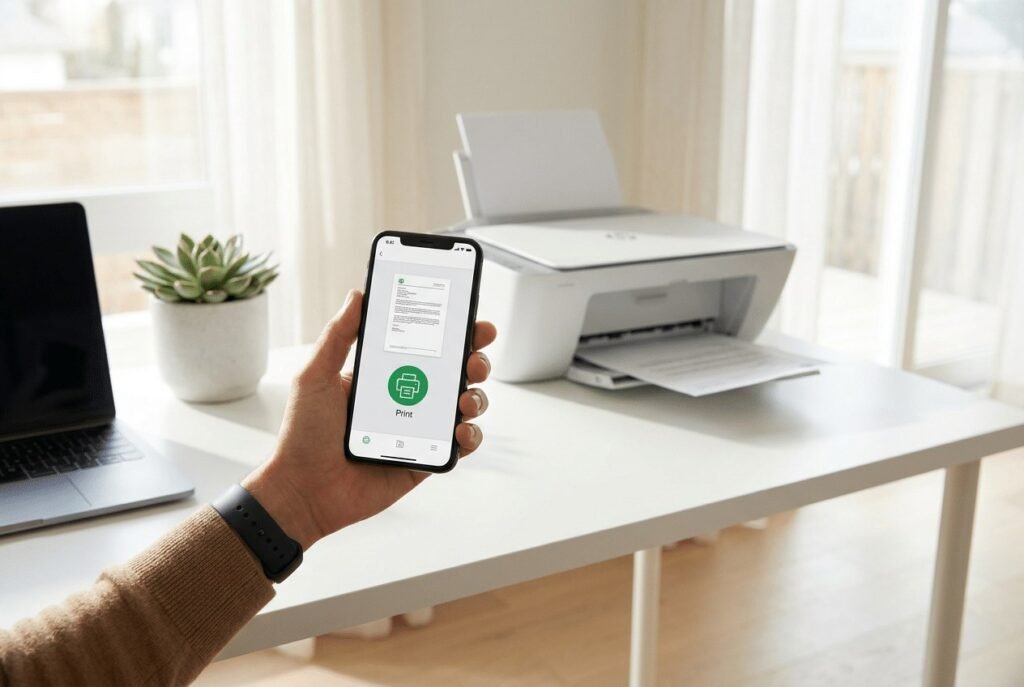
Need to print a boarding pass or a school permission slip and the only device handy is your phone? Setting up a printer with your phone wirelessly is one of those things that sounds fiddly but takes about five minutes once you know where the buttons are.
The key requirement: your phone and printer need to be on the same Wi-Fi network. If your printer is Wi-Fi capable (most sold in the last decade are), you’re 90% of the way there.
The short answer: connect your printer to your home Wi-Fi using its touchscreen or the manufacturer’s app, then print directly — iPhones use built-in AirPrint (Share > Print), and Android phones print through Settings > Connected devices > Printing or the manufacturer’s app.
Step 1: Get Your Printer on Wi-Fi First
This is the step people skip, then wonder why nothing works. Your printer must join the same Wi-Fi network as your phone. On most modern printers, tap the Wi-Fi icon on the printer’s touchscreen, choose your network, and enter the password. No touchscreen? Use the manufacturer’s app — HP Smart, Canon PRINT, Brother Mobile Connect, Epson iPrint — which walks you through setup over a temporary connection.
One gotcha: many printers only connect to the 2.4GHz band, while your phone might be on 5GHz. That’s usually fine as long as both bands are part of the same network (most home routers combine them). But if your router broadcasts them as separate networks with different names, put your phone on the 2.4GHz one temporarily during setup. Also make sure the printer’s firmware is updated — ancient firmware is the cause of a shocking number of ‘it just won’t connect’ mysteries.
Printing From an iPhone: It’s Built In
iPhones make this almost embarrassingly easy thanks to AirPrint — no app needed for most printers. Open whatever you want to print (a photo, email, web page, or document), tap the Share button, scroll down to Print, and your AirPrint-compatible printer should appear in the printer list. Tap it, choose copies and pages, and hit Print.
If your printer doesn’t appear, double-check the same-network requirement and make sure the printer isn’t in deep sleep or offline. Older printers without AirPrint support need the manufacturer’s app (HP Smart, etc.) instead — the app finds the printer over Wi-Fi and handles printing for you. It’s one extra step, but it works just as well once set up.
Printing From an Android Phone
Android’s path: open the document or photo, tap the three-dot menu, select Print, and choose your printer from the dropdown. If no printer appears, go to Settings > Connected devices > Connection preferences > Printing, and enable the Default Print Service — your phone will then discover network printers automatically.
Like iPhone, Android works best with the manufacturer’s app for older or finicky printers. HP Smart, Canon PRINT Inkjet/SELPHY, and Epson iPrint all let you print, scan, and check ink levels from your phone. These apps are also handy for printing when you’re not on the same network — most support cloud printing, so you can send a job to your home printer from the office.
- iPhone: Share button > Print (AirPrint, no app needed)
- Android: three-dot menu > Print, or Settings > Connected devices > Printing
- Older printers: install the manufacturer’s app (HP Smart, Canon PRINT, Epson iPrint)
- Printer and phone must be on the same Wi-Fi network
- Printer not found? Check it’s awake, on Wi-Fi, and firmware is updated
Troubleshooting When It Won’t Print
Printer shows up but jobs vanish? Restart everything in this order: printer, router, phone. It sounds like a cliché because it works — printing depends on network discovery, which is fragile. Also check that your VPN is off; VPNs route traffic away from your local network and silently break printer discovery.
If the printer keeps dropping off Wi-Fi, give it a static IP address in your router settings so the address never changes — this fixes the maddening ‘it worked yesterday’ problem permanently. And if you’re printing often from your phone, it’s worth knowing how to print from your phone without a Wi-Fi connection too, for those times the network is down but the deadline isn’t.
How Do I Set Up a Printer With My Phone Wirelessly on Older Printers?
Got a printer from 2015 with no Wi-Fi at all? You still have options. A $25–$35 wireless print server (like the ones from TP-Link) plugs into the printer’s USB port and puts it on your Wi-Fi network — suddenly your ancient laser printer is a network printer your phone can find. It’s a neat trick that extends the life of perfectly good hardware.
Alternatively, if you have a computer that’s usually on, share the printer through it: on Windows, enable printer sharing in Settings, and apps like PrintHand (Android) can print to shared printers over the network. It’s a bit Rube Goldberg, but it works. And for the truly minimal: many libraries, UPS Stores, and FedEx Office locations let you print from your phone via their apps or email-to-print — sometimes the best printer setup is no printer at all, just knowing where the nearest one is.
Whichever route you take, once it’s working, print a test page and save the setup notes somewhere. Future you, troubleshooting at 11pm before a morning deadline, will appreciate past you’s documentation.
For classrooms and offices with managed printers, ask about ‘follow-me’ or ‘secure print’ — you send the job from your phone, then release it by tapping your badge or entering a code at any printer in the building. It’s more secure than direct printing (jobs don’t sit in output trays) and IT departments love it. If your workplace has it and nobody told you, that two-minute IT conversation just upgraded your whole printing life.
Related reading: how do I set up two-factor authentication on my accounts
The Bottom Line
Get the printer on your Wi-Fi network first — that’s the whole battle. Then iPhones print via Share > Print with AirPrint, and Androids print through the menu or Connected devices settings. Keep the manufacturer’s app installed as a backup, restart all three devices when things get weird, and turn off your VPN before troubleshooting.
Sources: Apple’s guide to printing with AirPrint · Google’s Android printing help page






1 thought on “How to Set Up a Printer With Your Phone Wirelessly (iPhone & Android)”