
Why Your Wi-Fi Is Slow in Certain Rooms (and How to Fix Every Dead Zone)
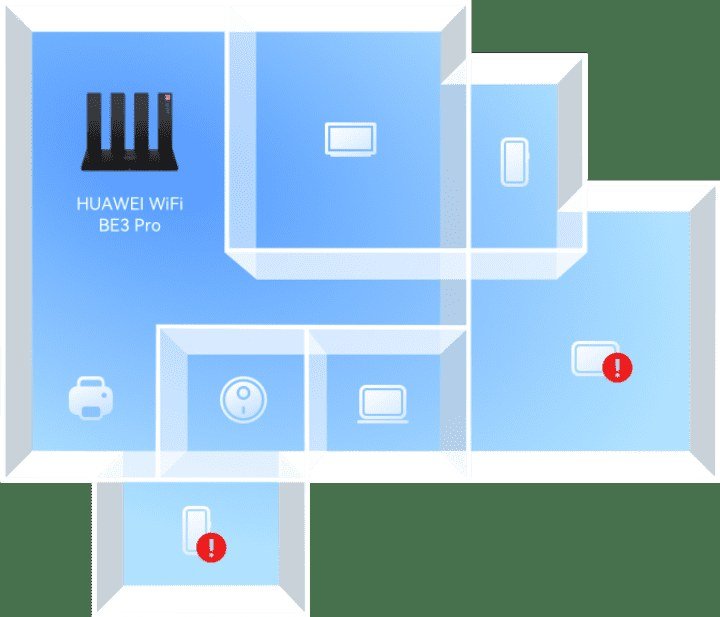
Fast in the living room, useless in the bedroom. If your Wi-Fi is slow in certain rooms of your house, you’re dealing with one of the most common home networking complaints — and it’s almost never your internet plan that’s the problem.
Wi-Fi is just radio waves, and radio waves hate walls, distance, and interference. The fix is usually free or cheap. Let’s figure out what’s killing your signal room by room.
The short answer: Wi-Fi slows in certain rooms because of distance from the router, walls and floors blocking the signal (especially brick, concrete, and metal), interference from neighbors’ networks and household devices, or an old router. Moving the router to a central, elevated spot fixes most dead zones for free.
Why Is My Wi-Fi So Slow in Certain Rooms? The Physics
Every wall between you and the router eats signal. Drywall is mild, but brick, concrete, plaster with metal lath, and even mirrors and fish tanks are brutal — a single brick wall can cut your speed in half. Floors are worse: if your router is in the basement and you’re on the second floor, the signal is fighting through two layers of everything.
Distance matters too, but not the way people think. The 5GHz band (the fast one) has shorter range than 2.4GHz — so that far bedroom might be clinging to a weak 5GHz signal when it would do better on 2.4GHz. Check which band your device is using; sometimes manually choosing the 2.4GHz network in distant rooms actually gives you faster, more stable speeds than a struggling 5GHz connection.
The Free Fix: Move Your Router
Router placement is the number one factor and it costs nothing. The ideal spot: central in your home, elevated (on a shelf, not the floor), out in the open — not inside a cabinet, behind the TV, or next to a wall. Antennas should point in different directions (one vertical, one horizontal) to cover multiple floors.
I once fixed a friend’s ‘terrible internet’ by moving the router from inside a metal entertainment cabinet to the top of a bookshelf — speeds in the far bedroom tripled. Before you spend a dime, try the new placement for a day. Use a free speed test app in each room to measure the difference; numbers beat gut feelings.
- Central location, not tucked in a corner of the house
- Elevated: shelf height or higher, never on the floor
- Out in the open: no cabinets, closets, or metal enclosures
- Away from microwaves, baby monitors, and Bluetooth speakers
- Antennas in different orientations for multi-floor coverage
When You Need Hardware: Extenders vs Mesh
If placement doesn’t cut it — big house, brick walls, multiple floors — you need more hardware. Skip the cheap plug-in ‘Wi-Fi extenders’ if you can: they halve your bandwidth and create a separate network that’s annoying to use. A mesh system (like Eero, Google Nest Wifi, or TP-Link Deco, $150–$300 for a 2–3 pack) is the real solution — one seamless network with nodes that hand off smoothly as you walk room to room.
Place mesh nodes halfway between the router and the dead zone, not inside the dead zone itself — a node with no signal to repeat is useless. For a home office where you need maximum reliability, consider a powerline adapter or running an Ethernet cable; nothing beats a wire for a desk that never moves. If your router is more than five years old, replacing it with a modern Wi-Fi 6 model ($80–$150) can also transform coverage on its own.
Check for Interference and Congestion
In apartments and dense neighborhoods, your neighbors’ networks fight yours for airtime. Use a free Wi-Fi analyzer app to see which channels are crowded, then switch your router to a less busy channel in its settings (channels 1, 6, and 11 on 2.4GHz don’t overlap). Many modern routers do this automatically, but older ones sit on the default channel forever.
Household devices interfere too: microwaves nuke the 2.4GHz band while running, baby monitors and old cordless phones camp on it permanently, and a house full of smart gadgets adds congestion. If your smart TV keeps disconnecting from Wi-Fi, interference or a weak distant signal is usually why — the same fixes apply. And if every room is slow (not just certain ones), that’s a different problem: call your ISP, because you might not be getting the speed you’re paying for.
Why Is My Wi-Fi So Slow in Certain Rooms of My House? Renter-Friendly Fixes
Renters can’t always move the router (it’s where the ISP installed the line) or drill holes for access points. Workarounds: a long flat Ethernet cable run under rugs can relocate the router without drilling — flat Cat6 cables tuck under carpet edges invisibly. Powerline adapters need no drilling at all and work in most apartments. And a mesh node on a bookshelf halfway to the dead zone is completely renter-safe.
Also check whether your ISP-provided router is the bottleneck — ISP combo units are notoriously mediocre, and many ISPs let you use your own router (a $80–$120 Wi-Fi 6 model usually outperforms the free one dramatically). Just confirm compatibility first. Finally, talk to neighbors in apartment buildings: if everyone’s Wi-Fi is bad, the building’s wiring or a single congested channel environment might be the issue, and coordinated channel changes help everyone.
Apartment dwellers should also check for a simpler culprit: the ISP’s combo modem-router tucked in a closet or behind the TV. These all-in-one units have weak Wi-Fi by design, and simply asking your ISP for a standalone modem plus your own router — or enabling bridge mode and adding your own mesh node — often fixes whole-apartment coverage. The $10/month rental fee you’re paying for their mediocre hardware is salt in the wound.
Related reading: how can I mirror my phone screen to my TV
The Bottom Line
Slow Wi-Fi in certain rooms is almost always placement, walls, or interference — not your internet plan. Move the router central and elevated for free, switch crowded channels, and if the house is big or brick, invest in a mesh system rather than a cheap extender. Measure with speed tests before and after so you know what actually worked.
Sources: FCC guide to improving home Wi-Fi · CNET’s guide to fixing dead zones






1 thought on “Why Your Wi-Fi Is Slow in Certain Rooms (and How to Fix Every Dead Zone)”