Why Your Smart TV Keeps Disconnecting From Wi-Fi (and the Fix)
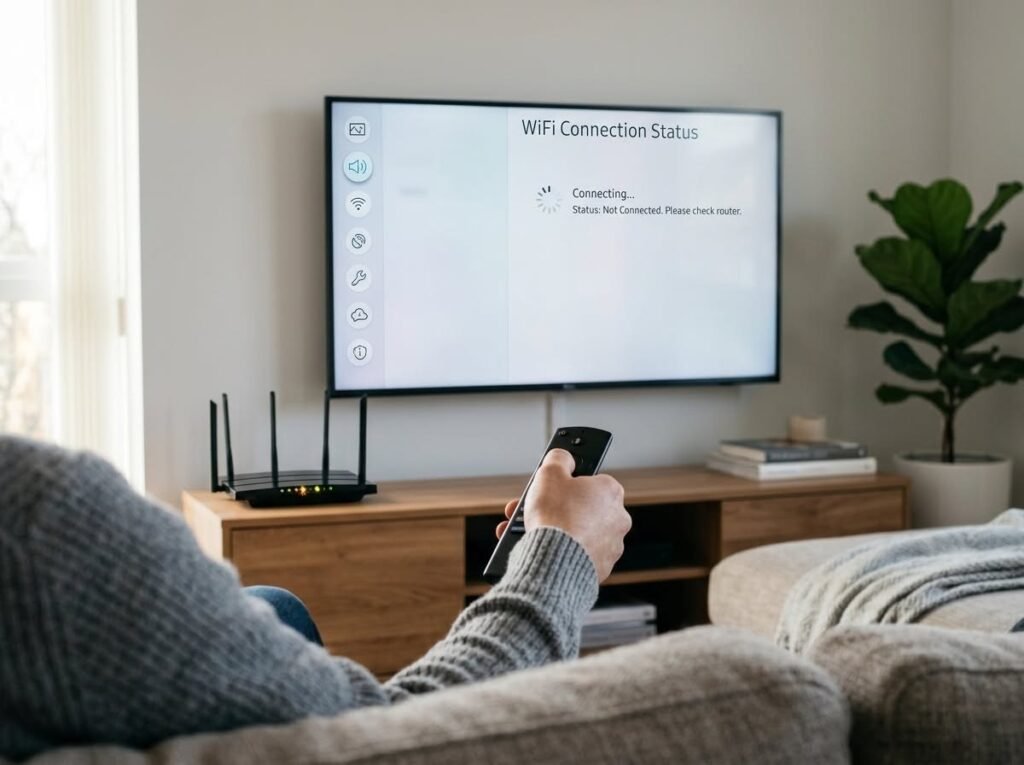
Nothing kills movie night like a smart TV that drops Wi-Fi every twenty minutes. If you’re wondering why your smart TV keeps disconnecting from Wi-Fi while your phone works fine, you’re not imagining it — TVs are genuinely worse at holding a connection than phones are.
The good news: it’s almost always one of a handful of fixable causes. Work through these in order and you’ll likely solve it without buying anything.
The short answer: smart TVs disconnect because of weak Wi-Fi signal (TVs have poor antennas), router channel congestion, outdated TV firmware, IP address conflicts, or dual-band confusion. Start by restarting the TV and router, updating the TV’s software, and moving the router closer or switching the TV to the 2.4GHz band.
Why Does My Smart TV Keep Disconnecting From Wi-Fi? The Main Causes
Weak signal is cause number one. TV Wi-Fi antennas are notoriously cheap — worse than your phone’s — and TVs usually sit against a wall, far from the router, sometimes behind a metal TV mount that acts like a shield. If your TV is two rooms from the router, it’s working with a fraction of the signal your phone gets in the same spot.
Second: the 5GHz trap. Your TV probably connected to the fast 5GHz band during setup, but 5GHz has short range and poor wall penetration. A TV on the edge of 5GHz range will connect, struggle, and drop — repeatedly. Switching the TV to your 2.4GHz network often fixes disconnects instantly, and 2.4GHz is plenty fast for 4K streaming (you only need about 25 Mbps).
- Weak signal: TVs have poor antennas and sit far from routers
- 5GHz range issues: switch the TV to the 2.4GHz band
- Outdated firmware: update the TV’s software
- IP conflicts: restart router or set a static IP for the TV
- Channel congestion: neighbors’ networks interfering
- Power saving: some TVs disable Wi-Fi in standby aggressively
The Fixes, in Order
First, the boring stuff that works: unplug the TV for 60 seconds (not just standby — a full power cycle), restart your router, and reconnect. Then check for a software update on the TV (usually under Settings > Support or Settings > System > About). Manufacturers quietly fix Wi-Fi bugs in updates all the time.
Next, forget the network on the TV and reconnect fresh — this clears corrupted saved credentials, a surprisingly common cause. While you’re at it, try the 2.4GHz band if you were on 5GHz. If disconnects persist, log into your router and assign the TV a static IP address; DHCP lease renewals dropping mid-stream cause exactly this symptom on some TV models.
When It’s a Signal Problem
If the TV is far from the router, treat it like any Wi-Fi dead zone: move the router to a more central, elevated spot, or add a mesh node halfway between. For a TV that never moves, though, the best fix is a wire — run Ethernet to the TV if you can. It’s the most reliable connection possible, it’s faster than Wi-Fi, and it ends the problem permanently.
No way to run a cable? A powerline adapter ($40–$70) sends network signal through your home’s electrical wiring — plug one near the router, one near the TV, connect Ethernet cables, done. It’s not as fast as real Ethernet but it’s far more stable than struggling Wi-Fi, which is what matters for streaming.
Weird Causes Worth Knowing
Some TVs have an ‘auto power saving’ or ‘network standby’ setting that aggressively kills Wi-Fi to save energy — dig through the eco/power settings and disable anything that powers down the network. HDMI-CEC conflicts can also cause odd behavior on some models; try disabling it temporarily as a test.
If the TV disconnects only during specific activities — say, every time the microwave runs — that’s 2.4GHz interference, and switching the TV to 5GHz (if the signal reaches) or moving the router away from the kitchen helps. And if nothing works and the TV is under warranty, say so: a failing Wi-Fi module is a legitimate defect. Out of warranty, a $30–$50 streaming stick (Roku, Fire TV, Chromecast) with better Wi-Fi often outperforms the TV’s built-in smart platform anyway — which is also the easiest way to mirror your phone screen to your TV reliably.
Why Does My Smart TV Keep Disconnecting From Wi-Fi While Other Devices Don’t?
This specific frustration — everything else works, only the TV drops — has a few TV-specific explanations. First, TV Wi-Fi chips are simply weaker than phone or laptop chips; manufacturers save pennies on the wireless module, and it shows. Your phone holding a signal in the same spot proves nothing about what the TV can hold.
Second, many TVs have aggressive power-saving that partially powers down the Wi-Fi radio in standby, then fails to reconnect cleanly. Dig into the TV’s settings for anything labeled Eco, Power Saving, or Quick Start — disabling the deepest sleep modes often fixes mysterious overnight disconnects. Some brands also have a ‘network standby’ toggle that keeps Wi-Fi alive; make sure it’s on.
Third, check for IP address conflicts specifically: if your router assigns the TV an address that another device grabs later, the TV drops. The permanent fix is a DHCP reservation (static IP) for the TV in your router settings — five minutes in the router admin panel, and this particular gremlin never returns. If none of this works, the streaming-stick workaround from the main guide remains the pragmatic champion: better Wi-Fi, better interface, thirty bucks.
Related reading: why your Wi-Fi is slow in certain rooms of your house · how to mirror your phone screen to your TV
The Bottom Line
Restart everything, update the TV’s firmware, forget and rejoin the network, and try the 2.4GHz band — that sequence fixes most disconnects. For distant TVs, run Ethernet or use a powerline adapter instead of fighting weak Wi-Fi. And a cheap streaming stick is a perfectly good fix for a TV whose built-in Wi-Fi was never great.
Sources: Samsung US support · Roku support center