How to Mirror Your Phone Screen to Your TV (iPhone & Android)
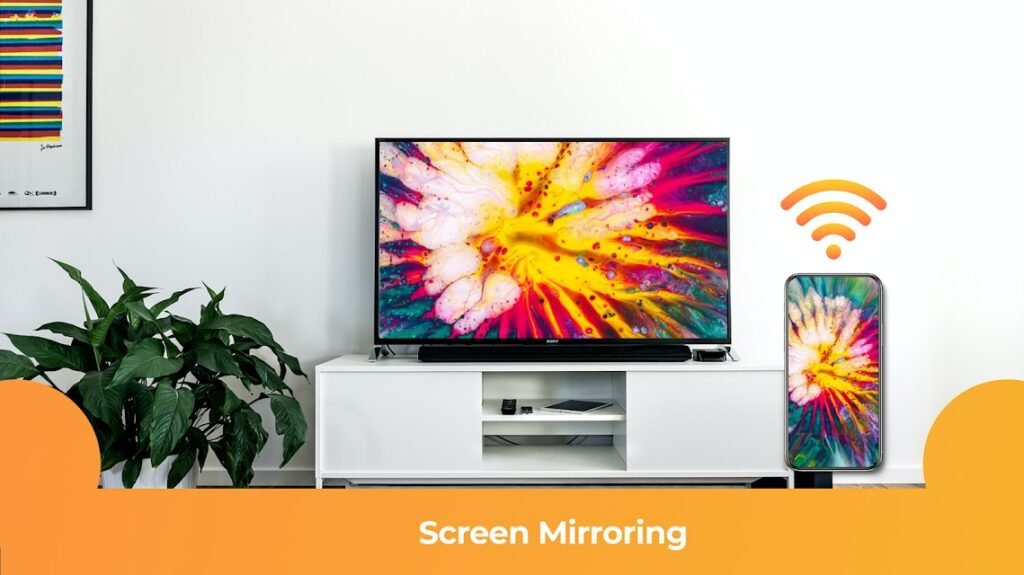
Want to show vacation photos on the big screen, or watch a video that only exists on your phone? Learning how to mirror your phone screen to your TV takes about two minutes — once you know which method matches your phone and TV combo.
There are four main ways to do it, and the right one depends on what you own. Here’s each method, who it’s for, and the one wired fallback that always works.
The short answer: iPhone users mirror with AirPlay to an Apple TV or AirPlay-compatible smart TV (Control Center > Screen Mirroring). Android users cast with Chromecast built-in or a Chromecast device (Google Home app or the Cast button). Both also work over HDMI with an adapter as a no-fail backup.
iPhone: Mirror With AirPlay
If you have an Apple TV or a smart TV with AirPlay 2 built in (most Samsung, LG, Sony, and Vizio models from 2019 onward), this is effortless. Make sure your iPhone and TV are on the same Wi-Fi network, open Control Center (swipe down from the top-right corner), tap Screen Mirroring, and select your TV. Enter the code if it asks. Done — your whole screen is now on the TV.
To stop, open Control Center again and tap Stop Mirroring. One tip: AirPlay mirrors everything, including notifications, so turn on Do Not Disturb first unless you want your texts on the big screen. For video apps like YouTube and Netflix, use the Cast/AirPlay button inside the app instead of full mirroring — it streams directly to the TV in higher quality while your phone stays free.
Android: Cast With Chromecast
Most Android phones cast to any TV with Chromecast built in (most Android/Google TVs, plus Chromecast and Fire TV devices). Same rule: phone and TV on the same Wi-Fi. Open the Google Home app, tap your TV or Chromecast device, tap ‘Cast my screen,’ and confirm. Alternatively, many apps (YouTube, Spotify, photos) have a Cast button that sends just that content — better quality, less battery drain.
Samsung phones also support Smart View (swipe down > Smart View) for Samsung TVs, and many phones support Miracast for direct TV connections without Wi-Fi. If your TV is older with no smart features, a $30 Chromecast or Fire TV Stick adds casting to any TV with an HDMI port — the cheapest upgrade you can make to a ‘dumb’ TV.
- iPhone + AirPlay TV: Control Center > Screen Mirroring
- Android + Chromecast TV: Google Home app > Cast my screen
- In-app casting (YouTube, Netflix): better quality than full mirroring
- Same Wi-Fi network required for all wireless methods
- Older TV? A $30 Chromecast or Fire TV Stick adds casting
The Wired Fallback: HDMI Adapters
Wireless acting up? A cable never fails. iPhone users need a Lightning-to-HDMI (or USB-C-to-HDMI for iPhone 15+) adapter — Apple’s official one is $49, and yes, the cheap knockoffs are hit-or-miss, so this is one place the official adapter is worth it. Plug it in, connect an HDMI cable to the TV, switch inputs, and your screen appears instantly.
Most Android phones with USB-C support video output too — a USB-C-to-HDMI cable ($15–$25) does the job, no adapter needed. This is also the best method for presentations and places with no Wi-Fi, like hotel rooms. Wired mirroring has zero lag, which matters for gaming — wireless mirroring always has a slight delay.
Troubleshooting Common Mirroring Problems
TV not showing up? The cause is almost always the network: both devices must be on the same Wi-Fi network (not one on 5GHz-guest and the other on main), and VPNs on your phone block device discovery — turn the VPN off. Restarting both devices fixes a surprising number of ‘it worked yesterday’ cases.
Choppy or laggy mirroring usually means weak Wi-Fi — the same dead-zone issues that make a smart TV keep disconnecting from Wi-Fi will ruin casting too. Move closer to the router or switch to the wired HDMI method. And if audio plays from the phone instead of the TV, check the TV’s input settings and volume — some TVs need the input explicitly set to receive audio over AirPlay/Chromecast.
How Can I Mirror My Phone Screen to My TV in a Hotel Room?
Hotel TVs are a special challenge: captive-portal Wi-Fi, isolated client networks that block device discovery, and TVs locked to hotel systems. The reliable methods: an HDMI adapter and cable (works everywhere, no network needed — the business traveler’s secret weapon), or a travel router ($30–$50) that connects to hotel Wi-Fi once and creates your own private network for your phone and a Chromecast/Fire Stick.
The travel router trick deserves elaboration: you join the tiny router to the hotel Wi-Fi (handling the captive portal once on your phone), then your phone and streaming stick join the router’s network — and suddenly casting works because both devices are on the same local network. It also gives you a private, encrypted bubble on sketchy hotel Wi-Fi. Frequent travelers swear by this setup.
What rarely works: casting directly over hotel Wi-Fi (client isolation blocks it), and hotel TV USB ports (usually power-only or locked down). Pack the HDMI adapter — it’s the one method with a 100% success rate, and it doubles as your presentation adapter for work trips.
For presentations, mirroring has one more trick: most phones can mirror while connected to a projector or TV via HDMI and still use the phone as a remote — advance slides by tapping, see your speaker notes on the phone screen while the audience sees only the slides (PowerPoint and Keynote both support this presenter view). It’s the closest thing to a professional presentation setup that fits in your pocket, and it works over wireless mirroring too when the network cooperates.
Related reading: why your smart TV keeps disconnecting from Wi-Fi · why your Wi-Fi is slow in certain rooms of your house
The Bottom Line
iPhone users: Control Center > Screen Mirroring to any AirPlay TV. Android users: Google Home app > Cast my screen to any Chromecast TV. Both need the same Wi-Fi network with VPN off. Keep a $15–$25 HDMI adapter around for hotels, presentations, and zero-lag gaming — wireless is convenient, but a cable never lets you down.
Sources: Apple: use AirPlay to stream video · Google: cast your Android screen