How to Turn Off Background Apps to Save Battery (iPhone & Android)
Your apps don’t stop working when you stop looking at them. They refresh feeds, check locations, and sync data all day — and your battery pays for it. Learning how to turn off background apps to save phone battery is one of the highest-impact tweaks you can make, and it takes about five minutes.
Fair warning on one myth first: force-closing apps by swiping them away does not save battery. In fact, it can use more, because relaunching from scratch costs more energy than resuming. What actually works is controlling what apps do when you’re not looking.
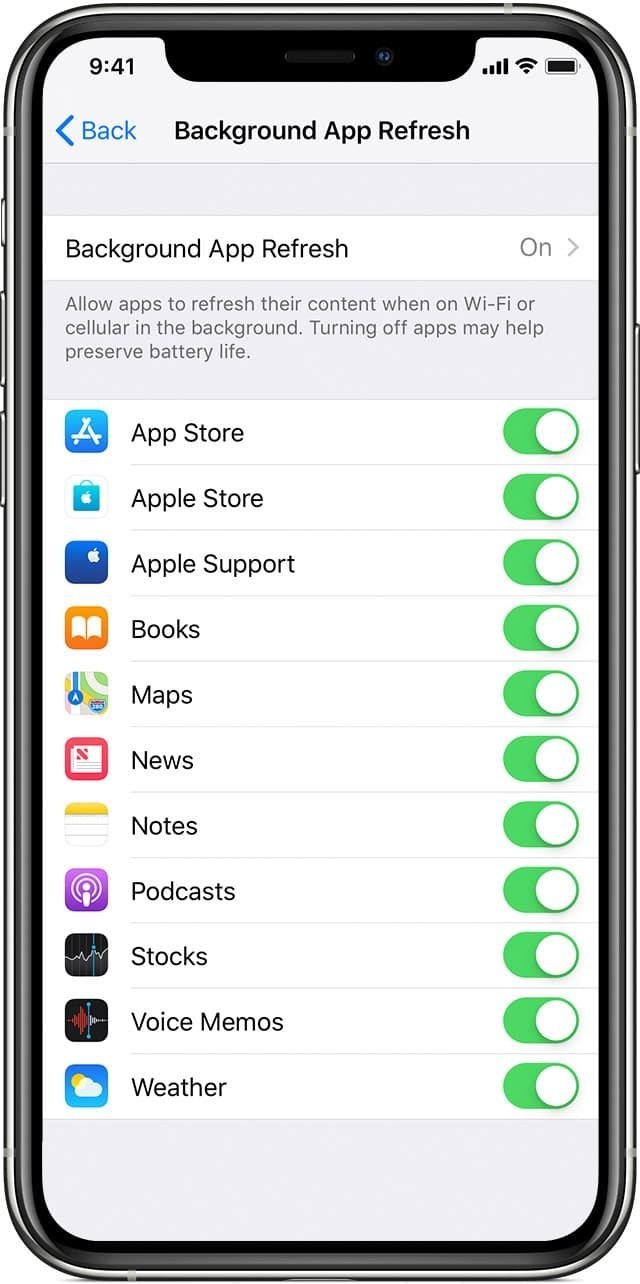
The short answer: on iPhone, go to Settings > General > Background App Refresh and turn it off for non-essential apps. On Android, go to Settings > Apps, tap an app, and set Battery to Restricted. Don’t bother force-closing apps — it doesn’t help and can hurt.
On iPhone: Master Background App Refresh
Go to Settings > General > Background App Refresh. You’ll see a master switch at the top and a per-app list below. The nuclear option — turning it off entirely — works fine for most people; apps still refresh when you open them, they just won’t pre-load in the background. Your email, news, and social apps will be a second slower to show new content. That’s the whole trade-off.
The smarter approach is selective: leave it on for messaging apps and anything where real-time updates matter to you, and turn it off for games, shopping apps, and social media you check manually anyway. While you’re in Settings, also check Settings > Privacy & Security > Location Services — apps set to ‘Always’ are often the real battery vampires, and ‘While Using the App’ is enough for nearly everything.
On Android: Restrict Background Battery Use
Android gives you per-app control: Settings > Apps > select an app > Battery (or App battery usage), then choose Unrestricted, Optimized, or Restricted. ‘Restricted’ is the heavy hammer — the app can’t run in the background at all and may not send notifications on time. Use it for apps you open manually and don’t need alerts from.
‘Optimized’ (the default) is usually fine, but check which apps you’ve set to Unrestricted — that’s the setting that lets apps run wild. Social media and shopping apps have no business being unrestricted. Samsung phones add another layer: Settings > Battery > Background usage limits lets you put apps to sleep automatically, including a ‘deep sleeping apps’ list that basically hibernates them.
- iPhone: Settings > General > Background App Refresh — disable per app
- Android: Settings > Apps > [app] > Battery > Restricted
- Samsung: Settings > Battery > Background usage limits > Deep sleeping apps
- Location: change ‘Always’ to ‘While Using the App’ everywhere possible
- Don’t force-close apps by swiping — it wastes battery, not saves it
Which Apps Are the Worst Offenders?
Check your battery usage screen first (Settings > Battery on both platforms) and sort by background activity — the culprits are personal to your habits, but the usual suspects are Facebook, Instagram, TikTok, Snapchat, and any app with constant location access (looking at you, weather widgets and coupon apps). Navigation apps left running after a drive are another classic.
Email set to Push is a quiet drain — switching to Fetch every 15–30 minutes barely changes your experience but stops the constant wake-ups. And if your phone battery drains fast overnight, background apps are suspect number one; an overnight drain check pairs perfectly with these settings.
What About Battery Saver Modes?
Both platforms have system-level savers worth knowing. iPhone’s Low Power Mode (Settings > Battery, or add it to Control Center) throttles background refresh, mail fetch, and visual effects with one tap — great for long days out. Android’s Battery Saver (Settings > Battery) does similar, and most Android phones let you schedule it automatically at a chosen percentage.
Extreme modes go further: Samsung’s Power Saving mode and Pixel’s Extreme Battery Saver limit you to essential apps and can stretch a nearly-dead phone for hours. These are emergency tools, not daily drivers — but knowing they exist beats carrying a dead phone. Combine sensible background restrictions with Low Power Mode on heavy days, and most people gain 1–2 hours of screen time without noticing any real difference.
How Do I Turn Off Background Apps to Save Phone Battery Without Missing Notifications?
The fear that stops people from restricting background apps is missing important notifications — and it’s a legitimate concern, because aggressive restriction can delay messages. The fix is selective, not wholesale: restrict aggressively for social media, games, shopping, and news (nothing urgent happens there), but leave messaging apps (Messages, WhatsApp, Signal), email, and calendar on normal or unrestricted so notifications arrive instantly.
Test your setup for a day: restrict the obvious offenders, then check whether any notification you care about arrived late. Adjust the exceptions based on reality, not anxiety. Most people find that 80% of their apps can be restricted with zero noticeable impact — the 20% that matters (messaging, calls, alarms, smart home) stays untouched. Also note that some apps (banking, 2FA) need occasional background refresh to stay logged in; if one starts logging you out, that’s your cue to loosen its restriction.
Revisit quarterly, because app updates sometimes reset battery settings, and new installs default to unrestricted. Five minutes every few months keeps the system working as designed.
Don’t forget the nuclear-adjacent option: most phones now show exactly how much background battery each app used in the last 24 hours versus the last 10 days. An app with high background usage that you barely open is either badly coded or deliberately aggressive — either way, it’s a candidate for restriction or deletion. Replace chronic offenders with lighter alternatives or the mobile website; you keep the function and lose the drain.
Related reading: why your phone battery drains so fast overnight · how to tell if your phone has been hacked
The Bottom Line
Stop force-closing apps — it doesn’t help. Instead, disable Background App Refresh for non-essentials on iPhone, set hungry Android apps to Restricted, and trim location permissions to ‘While Using.’ Check your battery usage screen to find your personal worst offenders, and use Low Power Mode as your safety net on long days.
Sources: Apple iPhone user guide · Google Android help center