
How to Set Up Two-Factor Authentication on Your Accounts (The Right Way)
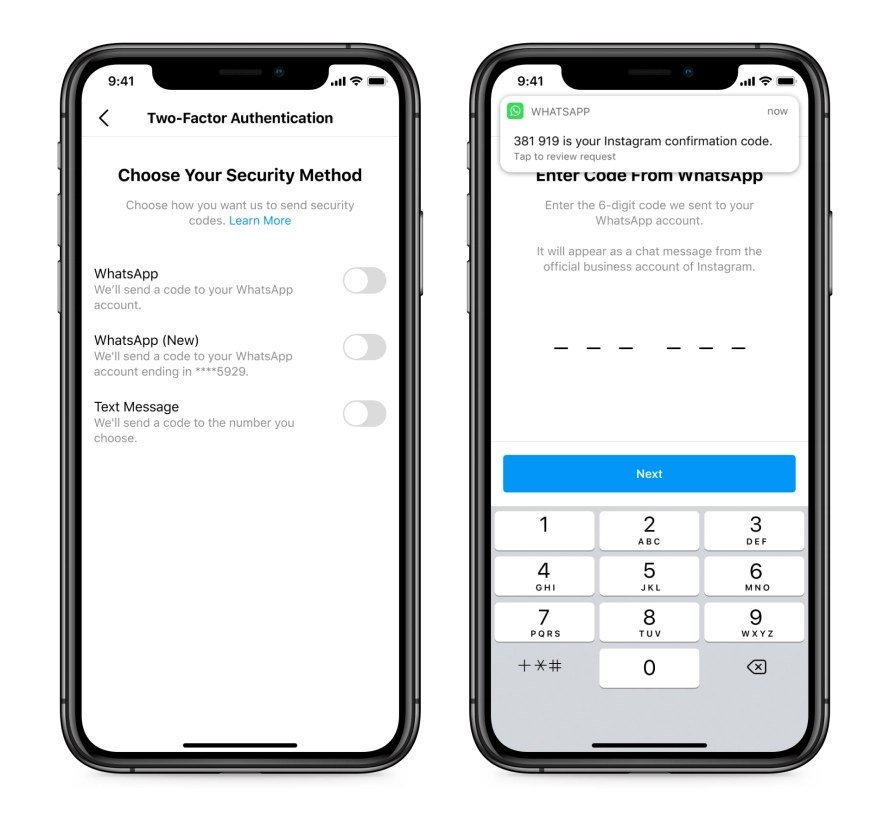
Passwords get stolen every day — in breaches you’ll never hear about, from companies you forgot you used. Two-factor authentication (2FA) is the single most effective thing you can do about it: even with your password, an attacker can’t get in without the second factor.
Setting it up takes about two minutes per account, and the accounts to prioritize might surprise you. Here’s how to do it right — including which 2FA method to choose, because they’re not all equal.
The short answer: use an authenticator app (Google Authenticator, Authy, or Microsoft Authenticator) rather than SMS codes — it’s more secure and works without cell signal. Enable 2FA in each account’s security settings, save the backup codes somewhere safe, and prioritize email, banking, and password manager accounts first.
How Do I Set Up Two-Factor Authentication on My Accounts? Start Here
The setup flow is nearly identical everywhere: log into the account on a computer, go to Settings > Security (sometimes called ‘Login & Security’ or ‘Account Security’), find ‘Two-factor authentication’ or ‘2-Step Verification,’ and follow the prompts. You’ll scan a QR code with your authenticator app, enter the 6-digit code it generates to confirm, and you’re done.
Do email first — your email is the master key that resets every other account’s password, so it’s the highest-value target you own. Then banking and financial apps, then your password manager and cloud storage (iCloud/Google), then social media. You don’t need to do all 200 accounts tonight; the top 10 cover 95% of your risk. Most services are under predictable paths: Google (myaccount.google.com > Security), Apple (Settings > your name > Sign-In & Security), Microsoft (account.microsoft.com > Security).
Authenticator App vs SMS vs Security Key
Authenticator apps are the sweet spot for most people: free, work offline, and immune to SIM-swapping (where an attacker convinces your carrier to move your number to their phone and intercepts your SMS codes). Google Authenticator, Authy, and Microsoft Authenticator all work fine — Authy’s multi-device sync and encrypted cloud backup make it the most forgiving if you lose your phone.
SMS codes are better than nothing — enable them if it’s the only option — but they’re the weakest method thanks to SIM-swapping. Hardware security keys (YubiKey, $25–$55) are the gold standard: phishing-proof and nearly unhackable, ideal for your email and password manager. My recommendation: authenticator app for everything, a YubiKey for your three most critical accounts, SMS only as a last resort.
- Best for most: authenticator app (Authy, Google/Microsoft Authenticator)
- Strongest: hardware security key like YubiKey ($25–$55)
- Weakest (but better than nothing): SMS text codes
- Priority order: email first, then banking, password manager, cloud, social
- Always save backup/recovery codes — print them, store safely
The Backup Codes Step Everyone Skips (Don’t)
During setup, every service shows you backup or recovery codes — one-time codes that get you in if you lose your phone. Screenshot them, print them, and store them somewhere safe (a fireproof document bag, a safe deposit box). This ten-second step is the difference between a minor inconvenience and being permanently locked out of your own accounts.
Also: when you get a new phone, transfer authenticator codes before wiping the old one — most authenticator apps have an export/transfer feature, and this is the step people forget until they’re locked out. Authy’s cloud backup handles this automatically, which is another reason it’s my default recommendation. Add this to your new-phone checklist alongside backing up the entire phone.
What About Passkeys?
Passkeys are the emerging replacement for passwords-plus-2FA: cryptographic keys stored on your device, unlocked with your fingerprint or face. Google, Apple, Microsoft, and a growing list of sites support them now, and they’re both easier and more secure than 2FA — no codes to type, nothing to phish.
When a site offers ‘create a passkey,’ take it — it’s strictly better than what you had. But keep 2FA enabled as a fallback wherever passkeys aren’t yet offered, because adoption will take years. Think of it as: passkeys where available, authenticator app everywhere else, backup codes always. That stack makes your accounts practically unhackable by anyone who isn’t specifically targeting you with nation-state resources.
How Do I Set Up Two-Factor Authentication on My Accounts After Losing My Phone?
The nightmare scenario: phone lost or broken, authenticator app gone, locked out of everything. Recovery depends on preparation. If you saved backup codes (the step everyone skips), use them — that’s what they’re for. If you used Authy with cloud backup, install it on the new phone, verify via SMS, and your codes restore. Google Authenticator now offers cloud sync too if you enabled it — check.
If none of that was set up, you’re in account-recovery land: each service has a process (Google’s takes days and requires verifying identity details; Apple uses account recovery with a waiting period). It’s slow by design — attackers shouldn’t be able to social-engineer past it quickly. Work through your most critical accounts first (email, then financial), and be patient.
The lesson for next time: when you get the replacement phone, set up Authy with encrypted backups enabled before anything else, print fresh backup codes for your top five accounts, and consider a YubiKey as a second factor that isn’t phone-dependent. Losing a phone is inevitable; being locked out of your life for a week is optional.
Prioritize ruthlessly when time is short: email first (the master key), then financial accounts, then the password manager, then cloud storage, then social media. These five categories cover the accounts whose compromise causes real damage. Everything else — forums, shopping sites, streaming — can wait for a rainy day. Twenty minutes on the top five eliminates the vast majority of your account-takeover risk.
Related reading: what is the best password manager for families · how to tell if your phone has been hacked
The Bottom Line
Enable 2FA with an authenticator app (not SMS) on your email first, then banking, password manager, and cloud accounts. Save backup codes on paper. Transfer codes before wiping an old phone. Adopt passkeys where offered. Two minutes per account buys you protection against the most common account-takeover attacks in existence.
Sources: CISA: turn on multi-factor authentication · Authy authenticator app






3 thoughts on “How to Set Up Two-Factor Authentication on Your Accounts (The Right Way)”