How to Stop Apps From Tracking Your Location (iPhone & Android)
Your weather app doesn’t need to know where you are at 2 a.m. Neither does that shopping app, or the game your kid downloaded. If you’re wondering how to stop apps from tracking your location, you’re right to ask — the average phone shares location with dozens of companies most people have never heard of.
The good news: both iPhone and Android now give you strong controls. The bad news: the defaults favor the trackers. Here’s how to take it back.
The short answer: on iPhone go to Settings > Privacy & Security > Location Services and set every app to ‘Never’ or ‘While Using’ — none should be ‘Always’ except Find My. On Android go to Settings > Location > App location permissions and do the same. Also disable ad tracking and location history.
The 10-Minute Location Audit
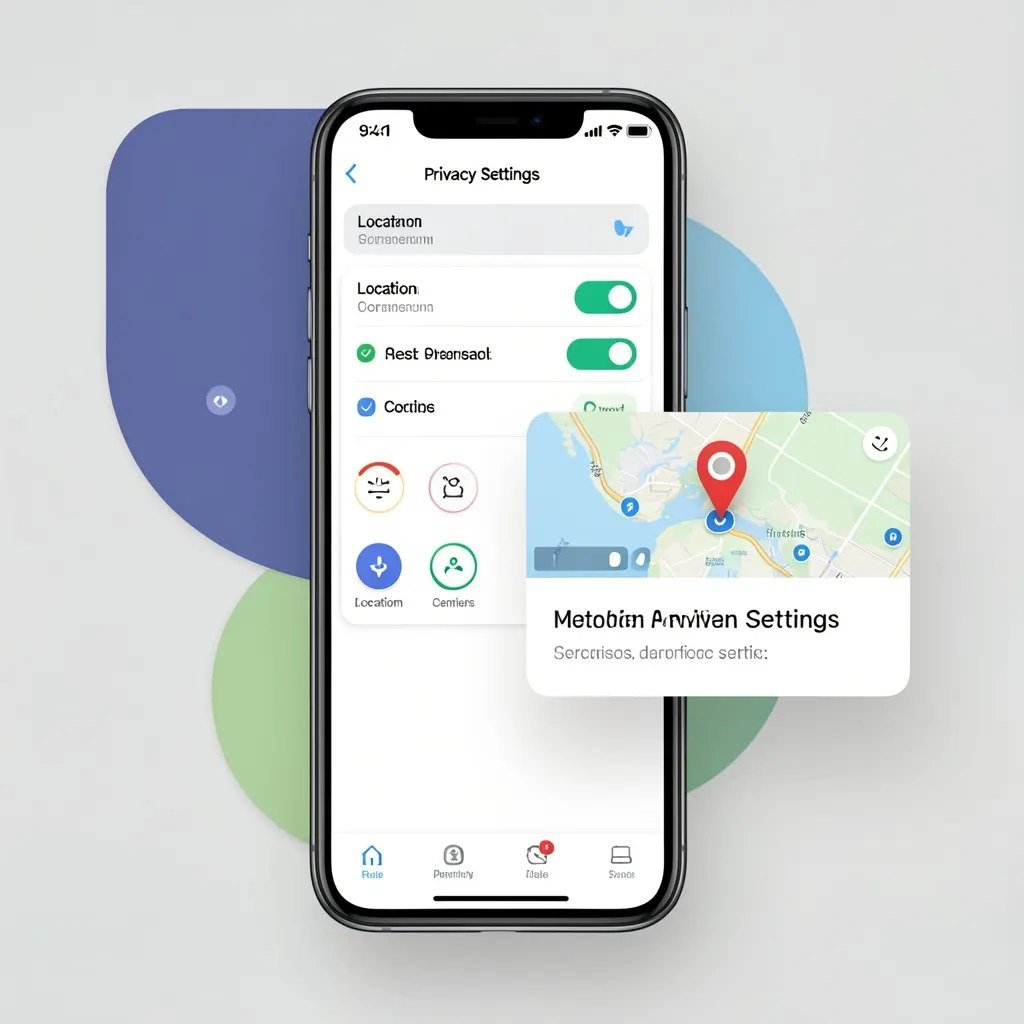
On iPhone: Settings > Privacy & Security > Location Services. You’ll see every app that’s requested location, with its current permission. Tap through the list and be ruthless: navigation and ride-share apps legitimately need ‘While Using.’ Everything else — social media, shopping, games, weather widgets — gets ‘Never’ or ‘While Using’ at most. Nothing except Find My iPhone (and maybe a family locator you chose) needs ‘Always.’
On Android: Settings > Location > App location permissions shows the same breakdown. Change ‘Allowed all the time’ to ‘Allowed only while in use’ for everything except true essentials. Also tap Location Services and turn off Wi-Fi scanning and Bluetooth scanning — these let apps estimate your location even with GPS off, and they’re enabled by default.
Beyond the App Permissions: The Hidden Trackers
App permissions are just the front door. Your phone also maintains location history — a timeline of everywhere you’ve been. On iPhone, check Settings > Privacy & Security > Location Services > System Services > Significant Locations; you can clear the history and turn it off. On Android, it’s your Google Account > Data & privacy > Location History — pause it and delete past data.
Then tackle ad tracking. iPhone: Settings > Privacy & Security > Apple Advertising > turn off Personalized Ads, and in Settings > Privacy & Security > Tracking, disable ‘Allow Apps to Request to Track’ entirely — this kills the cross-app tracking prompts at the source. Android: Settings > Privacy > Ads > ‘Delete advertising ID.’ Advertisers use that ID to stitch your location trail together across apps; deleting it breaks the chain.
- Set all apps to ‘Never’ or ‘While Using’ — nothing on ‘Always’
- Turn off Significant Locations (iPhone) / Location History (Google)
- Disable Wi-Fi and Bluetooth scanning (Android Location Services)
- Turn off ‘Allow Apps to Request to Track’ (iPhone)
- Delete your advertising ID (Android) / personalized ads (iPhone)
What About Google, Apple, and Your Carrier?
Let’s be honest about limits: your carrier always knows your approximate location (that’s how cell networks work), and Apple/Google collect some location data for services like Find My and traffic. You can’t fully opt out of that and still have a working smartphone. What you can do is minimize it: use Apple Maps or an alternative instead of Google Maps if you’ve paused Google location history, and review what’s shared in your Google Account dashboard yearly.
The realistic goal isn’t invisibility — it’s stopping the long tail of random apps and data brokers from building a profile on you. The app-permission audit above eliminates 90% of the problem. The remaining 10% is the price of a phone that can call an Uber and show you where the nearest gas station is.
Keep It That Way: Ongoing Habits
New apps will keep asking for location — default to ‘Don’t Allow’ or ‘Only this time’ and upgrade later only if the app genuinely needs it. That flashlight app asking for location is telling you everything about its business model; deny it and find a better flashlight. Review permissions twice a year; updates sometimes reset them.
For families, this matters doubly: kids’ apps are among the most aggressive trackers, so run the same audit on their devices and consider a family locator you control rather than letting a dozen apps do it. Pair this with a good password manager for the family and two-factor authentication, and you’ve covered the big three of personal digital security: who can find you, who can log in as you, and what happens if they try.
How Do I Stop Apps From Tracking My Location Without Breaking Useful Features?
The worry with locking down location is losing features you like — maps, ride-shares, delivery tracking, weather. The good news: ‘While Using the App’ preserves all of it. You lose nothing by demoting every app from ‘Always’ except background location, which almost no consumer app legitimately needs. Navigation works, Uber finds you, DoorDash tracks fine — all on ‘While Using.’
For the truly cautious, use approximate location: both iPhone and Android now let you grant apps your approximate rather than precise location (a toggle on the permission prompt). Weather apps, news apps, and store locators work perfectly with approximate location — they don’t need to know which room you’re in. Reserve precise location for maps, ride-shares, and emergency apps only.
One more layer: review which apps you’ve granted Bluetooth and local-network access, since these can be used for location-adjacent tracking (retail beacons, for instance). And remember the physical layer — turning location off doesn’t stop your carrier or anyone with your IP address from approximating where you are. The goal is minimizing the casual, commercial tracking, which these settings accomplish well.
A final layer for the privacy-conscious: audit location access for system services too, not just apps. Both iPhone (Settings > Privacy & Security > Location Services > System Services) and Android have dozens of system-level toggles — emergency calls and Find My stay on, but things like location-based ads, suggestions, and analytics can go. It’s a five-minute scroll that closes the gaps the app audit missed.
Related reading: how to turn off background apps to save phone battery · what is the best password manager for families
The Bottom Line
Audit every app’s location permission and demote everything from ‘Always’ to ‘While Using’ or ‘Never.’ Clear Significant Locations/Location History, disable ad tracking, and turn off Wi-Fi/Bluetooth scanning. Default to denying new apps and review twice a year. You won’t become invisible, but you’ll cut off the data brokers doing the real tracking.
Sources: Apple: control location tracking on iPhone · Google: manage location settings on Android