How to Print From Your Phone Without Wi-Fi (4 Workarounds)
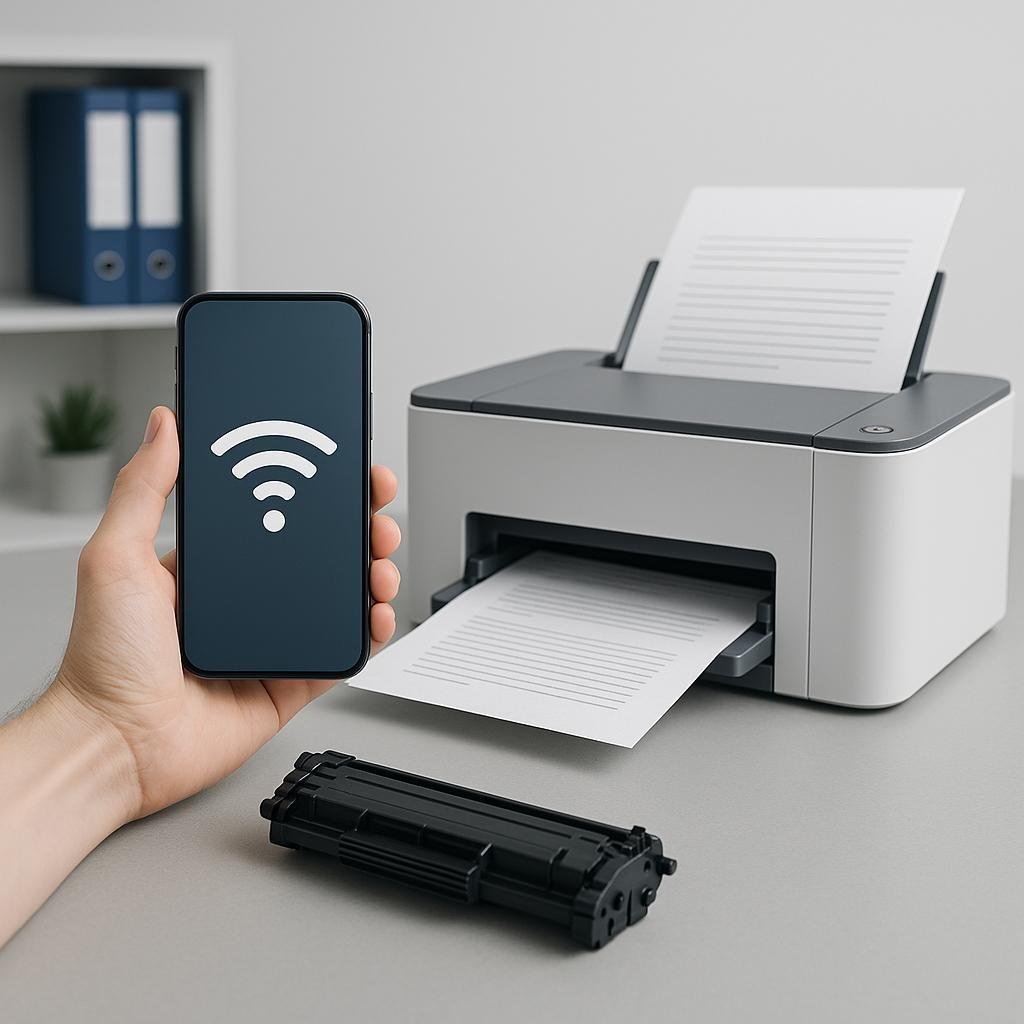
The Wi-Fi is down, you’re at a cabin, or you’re somewhere with no network at all — but you need to print. Knowing how to print from your phone without a Wi-Fi connection sounds like a contradiction, but most modern printers can talk to your phone directly, no router required.
Here are the four methods, from easiest to most old-school. One of them will work with the printer you have.
The short answer: use Wi-Fi Direct (most printers from the last decade support it — your phone connects straight to the printer), or turn on your phone’s hotspot and join the printer to it. For older printers, USB OTG cables or Bluetooth printing work too.
Method 1: Wi-Fi Direct (Easiest, No Network Needed)
Wi-Fi Direct lets your phone connect straight to the printer, bypassing any router. On the printer, find Wi-Fi Direct in the network/wireless settings (on HP printers it’s often under the wireless menu; Canon and Brother have similar options) and turn it on — the printer displays a network name (like DIRECT-AB-HP OfficeJet) and password. On your phone, join that network like any Wi-Fi network, then print normally through AirPrint, the Android print menu, or the manufacturer’s app.
The catch: while connected to the printer’s direct network, your phone isn’t on the internet — so open the document first, then connect and print. When you’re done, switch your phone back to regular Wi-Fi. It’s a two-minute detour that works anywhere, and it’s the method I reach for first.
Method 2: Phone Hotspot as the Network
Flip the relationship: instead of the phone joining the printer’s network, have the printer join your phone’s hotspot. Turn on your phone’s mobile hotspot, then use the printer’s control panel (or the manufacturer’s app) to connect the printer to your hotspot’s network name, just like joining home Wi-Fi. Once connected, print from your phone normally.
This works well when the printer doesn’t support Wi-Fi Direct but does support regular Wi-Fi. Downsides: it uses a trickle of mobile data (printing itself is tiny — a few MB at most), and some carriers restrict what devices can join hotspots. But for the occasional emergency print, it’s seamless — and your phone stays online the whole time, unlike Wi-Fi Direct.
- Wi-Fi Direct: phone joins the printer’s own network — no router needed
- Hotspot method: printer joins your phone’s hotspot network
- USB OTG: wired connection via adapter for older printers
- Bluetooth: slow but works for basic documents on some models
- Manufacturer apps (HP Smart, Canon PRINT) streamline all of these
Method 3: USB OTG Cable (The Wired Way)
For printers without any wireless, a USB OTG (On-The-Go) adapter lets you plug the printer directly into your phone. Android phones widely support this: connect a USB-C OTG adapter ($8–$12), plug in a standard USB printer cable, and use the manufacturer’s app or Android’s print service to send the job. It’s old-school but bulletproof — no network, no pairing, no fuss.
iPhones are trickier: iOS doesn’t support USB printing directly, so this method is Android-only in practice. iPhone users without wireless options are better off with Wi-Fi Direct or the hotspot method. (This is one of the few printing scenarios where Android genuinely has the edge.)
Method 4: Bluetooth Printing
Some portable and older printers support Bluetooth printing — pair the printer in your phone’s Bluetooth settings, then print through the manufacturer’s app. It’s slow (fine for a page or two of text, painful for photos) and range-limited, but it works with zero network infrastructure. Portable printers like the Canon Pixma TR150 or HP OfficeJet 200 are built for exactly this scenario.
Honestly, if you print from your phone regularly without Wi-Fi — field work, markets, events — a portable printer ($150–$250) with Bluetooth and Wi-Fi Direct is worth the investment. For the rest of us, knowing the Wi-Fi Direct trick covers the rare emergency. And when you do have Wi-Fi, the standard wireless printer setup from your phone is the way to go.
How Can I Print From My Phone Without a Wi-Fi Connection at Work or School?
Office and school printers add enterprise wrinkles: they’re on managed networks you can’t join, and IT policies may block personal devices. The practical paths: email-to-print (many office printers from HP, Canon, and Xerox have unique email addresses — email the document as an attachment and it prints), the manufacturer’s app with Wi-Fi Direct to the specific printer, or USB OTG on Android for a direct cable connection.
The path of least resistance is often asking IT: many workplaces have a mobile printing solution (PaperCut, PrinterLogic, or native follow-me printing) that they simply never told you about. A two-minute conversation with IT beats an hour of workarounds — and they’ll tell you the sanctioned method, which matters because circumventing print security policies can be a fireable offense in regulated industries.
For schools: libraries almost always have print-from-phone via an app or web upload (check the library website), and computer labs usually allow USB printing. Save the file as PDF before sending — PDFs print consistently everywhere, while Word docs reformat unpredictably on different systems. When in doubt, PDF it.
Save every successful method as a note on your phone: which printer, which network name, which app, what worked. Printing problems are recurring — the same hotel chain, the same client’s office — and a personal playbook turns each future encounter into a two-minute task instead of a fresh troubleshooting session. The people who ‘always manage to print’ aren’t luckier; they’re just organized.
Related reading: how to set up a printer with your phone wirelessly · how to use your phone as a hotspot without extra charges
The Bottom Line
Wi-Fi Direct is your best bet — the printer broadcasts its own network, your phone joins it, you print, done. No Wi-Fi Direct? Join the printer to your phone’s hotspot. Android users have USB OTG as a wired fallback; Bluetooth covers basic documents on portable printers. One of these works with virtually any printer made in the last ten years.
Sources: HP: print with Wi-Fi Direct · Canon PRINT app