
Phone Storage Full But You Barely Have Apps? Here’s Where It All Went
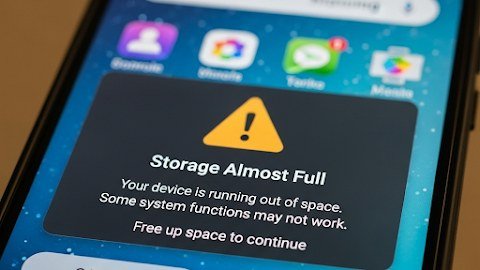
You have maybe 30 apps, but your phone insists it’s full. Where did it all go? When your phone storage says full but you barely have any apps, the space is being eaten by things that don’t look like ‘apps’ — cached data, old messages, downloaded files, and the mysterious ‘Other’ or ‘System Data’ category.
The good news: you can usually reclaim 10–30GB without deleting anything you care about. Here’s the treasure map.
The short answer: check Settings > Storage to see the real breakdown — the culprits are usually cached app data (streaming apps, browsers), years of message attachments, downloaded offline content, duplicate photos, and bloated ‘System Data.’ Clear caches, offload unused apps, and move photos to the cloud.
Step 1: Find Out What’s Actually Eating the Space
iPhone: Settings > General > iPhone Storage. Wait for the colored bar to load — it breaks usage into Apps, Photos, Messages, and System Data. Tap into the biggest categories. Android: Settings > Storage shows a similar breakdown by category. This takes 30 seconds and tells you exactly where to strike.
The usual suspects: Photos (often the biggest — especially 4K videos), Messages (years of photos, videos, and GIFs in threads), WhatsApp or Telegram media (auto-downloaded into oblivion), streaming apps with offline downloads you forgot (Netflix, Spotify, podcasts), and on iPhone, the cryptic ‘System Data’ category that balloons with cached files and logs.
The Big Wins: Photos, Messages, and Downloads
Photos first: enable iCloud Photos or Google Photos with ‘optimize storage’ so full-resolution originals live in the cloud and your phone keeps thumbnails — this alone can free 50GB+ for heavy shooters. Then delete the obvious: screenshots of things you no longer need, duplicate burst photos, and blurry shots. (Your deleted photos sit in Recently Deleted for 30 days still eating space — empty it after a cleanup for instant results.)
Messages second: on iPhone, Settings > Messages > Keep Messages > change from Forever to 1 Year (or 30 Days) — this single setting has freed 20GB+ for people I know. Review large attachments under iPhone Storage > Messages. On Android, clear media-heavy chat threads in WhatsApp (Settings > Storage and data > Manage storage). Then check Downloads folders and offline content in Netflix, Spotify, YouTube, and podcast apps — delete what you’ve already watched or listened to.
- Enable cloud photos with ‘optimize storage’ (frees 20–50GB+)
- Empty Recently Deleted / Trash after cleaning photos
- Change Messages to auto-delete after 1 year
- Clear WhatsApp/Telegram auto-downloaded media
- Delete watched offline downloads in streaming apps
- Offload unused apps (iPhone) — keeps data, frees the app size
Taming ‘System Data’ and App Caches
On iPhone, ‘System Data’ (formerly ‘Other’) is caches, logs, and temp files that iOS manages — and sometimes mismanages. If it’s over 15–20GB, the reliable fixes are: update iOS (updates clear caches), offload and reinstall the worst-offender apps (this nukes their cached data while keeping your logins), or as a last resort, back up and restore the phone — a restore typically shrinks System Data dramatically.
On Android, you have direct control: Settings > Apps > select a heavy app > Storage > Clear Cache (not Clear Data — that wipes your logins and settings). Browsers, social media, and shopping apps accumulate gigabytes of cache. Do this for the top five offenders and you’ll often reclaim 5–10GB in two minutes. Some Android phones also have a built-in storage cleaner in device care settings — run it.
Staying Ahead of It
Once you’ve reclaimed space, keep it: set messaging to auto-delete old threads, turn on cloud photo optimization permanently, disable auto-download in WhatsApp and Telegram (download manually what you want to keep), and review offline downloads monthly. These are five-minute habits that prevent the crisis from recurring.
And think longer-term at your next upgrade: if you’re constantly fighting for space, the real question is how much storage you really need on a new smartphone — most chronic ‘storage full’ sufferers are on 64GB or 128GB phones in a 256GB world. The $100 step-up at purchase beats years of storage triage.
Why Does My Phone Storage Say Full When I Barely Have Any Apps? The System Data Problem
Let’s go deeper on the most mysterious category: ‘System Data’ (iPhone) or ‘System’ (Android). This bucket holds caches, logs, temporary files, Siri voices, dictionaries, and update files — and it can balloon to 20–40GB on phones that have never been restored. iOS is supposed to manage it automatically, but on long-running installs without a fresh restore, it often doesn’t.
The reliable fix ladder: first, update iOS/Android — updates include cache-clearing routines. Second, offload your biggest apps (iPhone: Settings > General > iPhone Storage > Offload App) and reinstall them; this preserves your data while nuking gigabytes of accumulated cache. Third, clear browser caches and downloaded files. Fourth — the definitive fix — back up and restore the phone: a fresh restore typically cuts System Data to 5–10GB, reclaiming enormous space. It’s an hour of work that can free 20GB+.
Prevention: restart your phone weekly (clears temp files), don’t hoard 50 browser tabs, stream instead of downloading when possible, and do a fresh restore every 2–3 years rather than carrying the same install across four phones. Think of it as an oil change for your storage system.
If you’ve done all the cleanup and storage is still critically full, check for the runaway-download culprit: podcast apps set to auto-download every episode, offline maps for entire states, or a messaging app backing up gigabytes of media internally. One podcast app with a year of auto-downloaded episodes can quietly hold 30GB. Cap auto-downloads to the last 5–10 episodes and watch tens of gigabytes materialize.
Related reading: how much storage you really need on a new smartphone · how to recover deleted photos from your phone
The Bottom Line
Check the storage breakdown first — photos, messages, and cached data are the usual culprits, not your app count. Enable cloud photo optimization, set messages to auto-delete after a year, clear app caches, and empty Recently Deleted. These steps routinely free 10–30GB. If you’re always fighting it, size up your storage at the next upgrade.
Sources: Apple: check storage on iPhone · Google: free up space on Android